
Discover the Best Streaming Device for IPTV in 2026

Tired of choppy streams, frozen screens, and apps that crash right when the game hits overtime? You're not alone. Picking the wrong streaming device is the single biggest reason IPTV subscribers suffer through a terrible experience, even when their subscription and internet connection are perfectly fine. The hardware sitting between your M3U playlist and your TV matters more than most people realize, and once you nail this choice, everything else clicks into place. This guide breaks down exactly which is best streaming device for TV for IPTV, so you stop guessing and start streaming flawlessly tonight.
Choosing the right hardware directly impacts every single viewing session you'll ever have. A device that can't keep up with your IPTV provider's stream quality will make even a premium subscription feel like a bargain-bin service, and no VPN or settings tweak will fix what bad hardware breaks.
Core Concepts & Need-To-Know Info
- RAM matters more than most specs: IPTV apps like TiviMate need at least 2GB RAM to run EPG (Electronic Program Guide) data smoothly without crashing
- Processor speed determines decode performance: 4K HEVC streams require a capable chip; budget devices skip frames and buffer constantly on these
- Storage affects app performance: devices with 8GB or more internal storage prevent the insufficient space errors that corrupt M3U playlists
- Android OS version controls app availability: Android 7.0 and above ensures compatibility with the latest versions of all major IPTV apps
- Ethernet vs. Wi-Fi: a wired connection via Ethernet adapter eliminates the packet loss that Wi-Fi causes, which is the number one trigger for mid-stream buffering
- ISP throttling awareness: some internet providers deliberately slow IPTV traffic, meaning your device needs to support a VPN app to bypass this
- Codec support: look for devices with native H.264 and H.265/HEVC hardware decoding to reduce CPU load and prevent overheating during long streams
Step-by-Step Guide
- Step 1: Assess Your Streaming Needs:
- Decide upfront whether you're primarily watching live TV, VOD, or 4K sports. This determines whether you need a basic stick or a full Android TV box. If 4K HDR content is your priority, budget at minimum $50-$80 for a device that handles HEVC decoding natively.
- Step 2: Choose Your Device from the Top Tier:
- The Amazon Firestick 4K Max is the most beginner-friendly option, plug it into your HDMI port, sign into Amazon, and you're seconds away from installing IPTV apps. For power users, the NVIDIA Shield TV Pro or a Formuler Z8 Pro Android box delivers desktop-level performance for demanding Xtream Codes setups.
- Step 3: Enable Sideloading (Firestick Users):
- Navigate to Settings, My Fire TV, Developer Options, Apps from Unknown Sources, then Turn ON. This unlocks the ability to install TiviMate and IPTV Smarters directly via the Downloader app, both unavailable in the official Amazon store.
- Step 4: Install Your Preferred IPTV App:
- Open Downloader, type in the direct APK URL for TiviMate or IPTV Smarters Pro, and install. For Android TV boxes like the Chromecast with Google TV or Xiaomi Mi Box S, these apps are available directly in the Google Play Store, no sideloading required.
- Step 5: Enter Your M3U Playlist or Xtream Codes Credentials:
- Inside your chosen IPTV app, navigate to Add Playlist, M3U URL and paste the exact URL your IPTV provider sent you. Alternatively, select Xtream Codes API and enter your server URL, username, and password. Double-check every character, a single typo here breaks your entire channel list.
- Step 6: Configure Your Network for Stability:
- If your device has a USB port, plug in a compatible Ethernet adapter for a wired connection. If staying on Wi-Fi, switch your router to 5GHz band and position the streaming device within 15 feet of your router. Inside your IPTV app settings, set the buffer size to 10-15 seconds to smooth out minor network hiccups.
- Step 7: Test Streams and Install a VPN:
- Play several channels across different categories, live sports, news, and VOD, to confirm everything loads. If streams buffer consistently, install ExpressVPN or NordVPN directly on your device to bypass ISP throttling. Connect to a server close to your physical location for the lowest latency.
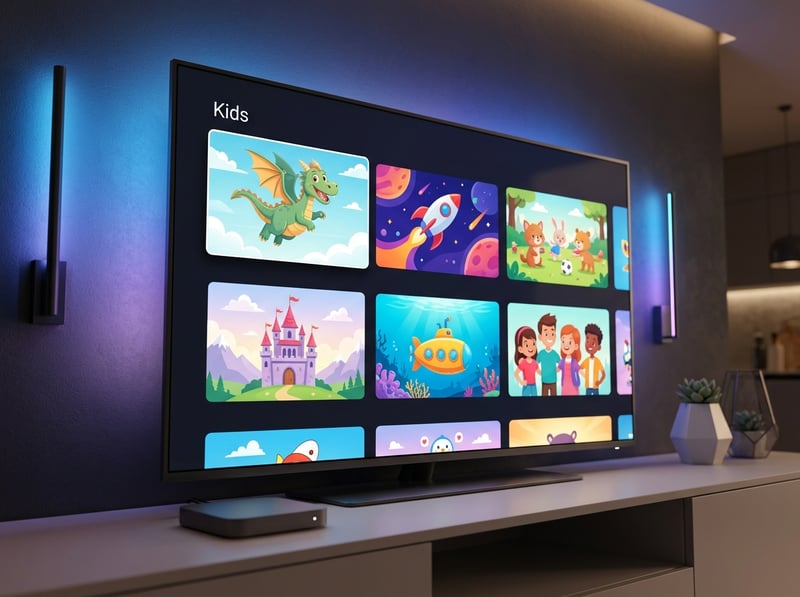
Picture this: you've paid for a premium IPTV subscription, your internet is 200 Mbps, and you're sitting down for a Champions League final, then the stream freezes every 90 seconds because your streaming stick only has 1GB of RAM and the IPTV app is choking on the EPG data load. That's not a provider problem. That's a hardware problem, and it's 100% preventable. Similarly, ISP throttling kicks in at the worst times, Friday nights, playoff season, major pay-per-view events, because providers know traffic spikes and deliberately deprioritize streaming protocols.
Best Streaming Devices for IPTV Ranked
- Amazon Firestick 4K Max: Best balance of price, ease of use, and performance for the average IPTV user; supports Wi-Fi 6 and has 3GB RAM
- NVIDIA Shield TV Pro: The gold standard for serious IPTV setups; handles 4K Dolby Vision, runs TiviMate flawlessly, and never lags even with 1,000+ channel EPGs
- Formuler Z8 Pro: Built specifically for IPTV, ships with MytvOnline 2 pre-installed, and includes a dedicated IPTV remote
- Chromecast with Google TV (4K): Google Play Store access means easy app installation; great for users already in the Google ecosystem
- Xiaomi Mi Box S: Budget-friendly Android TV box that punches above its weight for M3U playlist setups on a tight budget
- Apple TV 4K (3rd Gen): Premium build quality with apps like IPTV Smarters available; best choice for iOS/macOS households already using Apple devices
TiviMate vs. IPTV Smarters Pro: Which App to Use on Your Device
- TiviMate is widely considered the best IPTV player available for Android; its EPG layout mirrors a cable TV guide, it handles massive M3U playlists without slowing down, and the premium subscription ($5.99/year) unlocks multi-screen viewing and catch-up TV
- IPTV Smarters Pro is the better choice for users on multiple device types since it runs on iOS, Android, and Smart TVs; it supports both M3U and Xtream Codes API connections and has a more visual, Netflix-style interface for VOD browsing
- For Firestick users specifically, TiviMate via sideloading is the community's overwhelming preference, the remote-friendly UI was designed with Firestick navigation in mind
- For Android TV boxes, both apps are available on Google Play, so test both and stick with whichever feels faster on your specific hardware
- GSE Smart IPTV is a lesser-known option worth trying; it supports advanced subtitle formats and external media players, ideal if your subscription includes non-English content with complex subtitle tracks
Network Requirements for Buffer-Free 4K IPTV Streaming
- Minimum internet speed for HD IPTV: 25 Mbps dedicated to the streaming device (not shared with other devices actively streaming)
- Minimum for 4K IPTV streams: 50-75 Mbps, with H.265/HEVC compression reducing this requirement significantly if your device supports hardware decoding
- Wired Ethernet always beats Wi-Fi: even a 100 Mbps Wi-Fi connection introduces jitter and packet loss that a 50 Mbps wired connection doesn't
- Router placement: keep your streaming device within direct line of sight of your router if using Wi-Fi; every wall and floor between them degrades signal quality
- DNS settings: switching your device's DNS to Google (8.8.8.8) or Cloudflare (1.1.1.1) reduces stream load times and can bypass regional DNS-based restrictions some IPTV servers enforce
- QoS (Quality of Service) settings on your router: prioritize your streaming device's MAC address in router settings to ensure it always gets bandwidth before other household devices
Common Setup Mistakes and How to Fix Them
- Mistake: Pasting an M3U URL with a trailing space: Fix: Delete your playlist entry completely, manually retype the URL without copying from certain messaging apps that add invisible characters
- Mistake: Using the wrong port in Xtream Codes setup: Fix: Your provider will give you a specific port number (e.g., :8080 or :25461); never assume it's the default HTTP port 80
- Mistake: Not updating your IPTV app regularly: older versions lose compatibility with updated M3U formats and Xtream Codes API changes, causing channels to disappear
- Mistake: Overlooking time zone settings in EPG: if your Electronic Program Guide shows programs shifted by hours, go into app settings and manually select your correct time zone offset
- Mistake: Running multiple IPTV apps simultaneously: having TiviMate and IPTV Smarters both active in the background consumes RAM and triggers playback errors in both; close unused apps completely
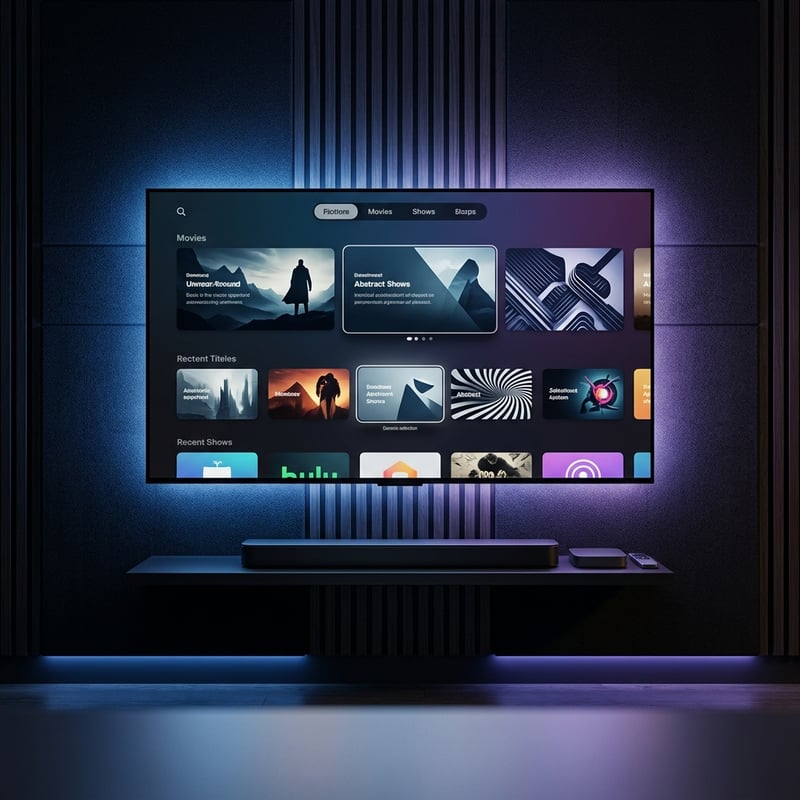
The answer to which is best streaming device for TV for IPTV isn't one-size-fits-all, it depends on your budget, technical comfort level, and streaming priorities. But the pattern is consistent: more RAM, proper Android OS support, and a wired network connection separate a great IPTV experience from a frustrating one. Pick a device from the top-tier options above, pair it with TiviMate or IPTV Smarters, protect your connection with a reliable VPN, and you'll never sit through a frozen stream during a live event again. Check out our full channel list and pricing plans to find the subscription that matches your new hardware perfectly.
Frequently Asked Questions
Ready to get started?
Try our service risk-free with a 24-hour free trial.
Related Articles
How to Get IPTV: Your Complete Guide for 2026
Discover how to get IPTV subscriptions and troubleshoot issues.
How to Set Up IPTV: A Comprehensive 2026 Guide
Learn how to set up IPTV effortlessly with our guide.
How to Search & Organize VOD Movies in IPTV (2026 Tips)
Master searching, filtering, and organizing on-demand movies and series on any player app.