

Does IPTV Work Better with VPN? Discover the Benefits Now!

If your IPTV streams keep freezing, buffering, or dropping out completely — especially during live sports or primetime shows — your Internet Service Provider might be quietly strangling your connection. ISP throttling is one of the most frustrating and least talked-about reasons why IPTV streams underperform, and a VPN is often the fastest fix most people never think to try. This guide breaks down exactly whether IPTV works better with a VPN, when it actually helps, and how to set it up correctly on your Firestick, Android TV box, or Smart TV so you can get back to watching without interruption.
Solving the throttling and routing problem is not just a nice-to-have — it is the difference between a premium streaming experience and a constantly buffering nightmare that makes a paid IPTV subscription feel worthless. Without addressing these network-level issues, even the best TiviMate setup or the fastest IPTV provider will underdeliver.
Core Concepts & Need-To-Know Info
- What ISP throttling actually is: Your Internet Service Provider detects heavy streaming traffic through deep packet inspection and intentionally reduces your bandwidth to manage network load or push you toward their own services.
- How a VPN encrypts your traffic: A VPN creates an encrypted tunnel between your device and the VPN server, making it impossible for your ISP to see that you are streaming IPTV, so they cannot selectively throttle it.
- What an M3U URL is: An M3U playlist is a text-based file containing links to your IPTV channels. It is what apps like TiviMate, IPTV Smarters, and GSE Smart IPTV use to pull in your channel list.
- Xtream Codes API: An alternative to M3U URLs, Xtream Codes uses a username, password, and server URL to authenticate and load your IPTV subscription into compatible apps.
- VPN protocols that matter for IPTV: WireGuard and OpenVPN are the two most relevant. WireGuard is faster and recommended for streaming because it has lower overhead.
- Split tunneling: A VPN feature that lets you route only your IPTV app traffic through the VPN while keeping everything else on your normal connection, reducing speed loss.
- Your baseline internet speed matters: For standard HD IPTV you need at least 10 Mbps, for FHD at least 25 Mbps, and for 4K streams you should have 50 Mbps or more available after the VPN overhead is accounted for.
Step-by-Step Guide
- Step 1: Enable Apps From Unknown Sources:
- On your Firestick, go to Settings, then My Fire TV, then Developer Options. Toggle Apps from Unknown Sources to ON. This allows you to sideload VPN apps that may not be in the Amazon App Store, though most top VPNs like ExpressVPN and NordVPN are available directly in the store.
- Step 2: Download Your Chosen VPN App:
- From the Firestick home screen, use the Search icon and type in your VPN provider's name such as ExpressVPN or NordVPN. Select the official app from the results and click Download. Wait for the installation to complete before moving on.
- Step 3: Log In to Your VPN Account:
- Open the VPN app and sign in using the credentials you created when you purchased your subscription. If you have not purchased a plan yet, do that first on your PC or phone — most providers have a money-back guarantee so you can test it risk-free.
- Step 4: Select a VPN Server Location:
- Choose a server in the same country as your IPTV provider's server for best performance. If your IPTV service is hosted in the UK or Europe, connect to a server in that region. Avoid servers that are geographically far from the IPTV server, as added latency will hurt stream quality.
- Step 5: Enable the VPN Connection:
- Tap the large Connect button in the VPN app. Wait until you see a confirmation that you are connected — most apps show a green indicator or a Connected message. Your Firestick's traffic is now encrypted.
- Step 6: Open Your IPTV App and Test Streams:
- Navigate to TiviMate, IPTV Smarters, or whichever app you use. Load a channel that previously buffered and check the playback quality. If you notice an immediate improvement, ISP throttling was the culprit. If speeds seem slower, try switching to a different VPN server closer to your IPTV provider's location.
- Step 7: Enable Split Tunneling (Optional but Recommended):
- In your VPN app's settings, look for Split Tunneling or Per-App VPN. Enable it and add only your IPTV app such as TiviMate to the VPN tunnel. This keeps your other apps running at full speed and reduces the load on the VPN connection, which often improves IPTV stream stability.
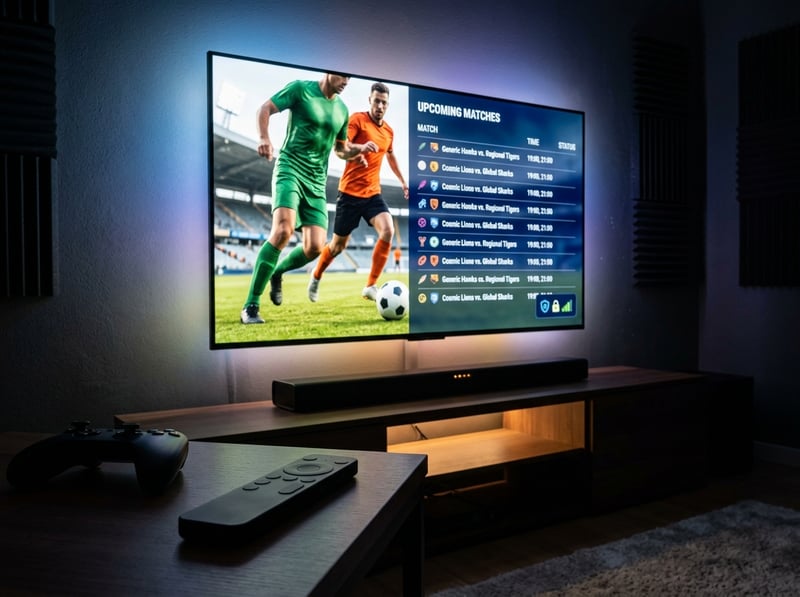
Imagine paying for a premium IPTV subscription and sitting down for the Champions League final only to have the stream freeze every 30 seconds — that is exactly what happens when you choose a free VPN or connect to the wrong server location. These are not minor inconveniences; they completely ruin the experience you are paying for. Getting the VPN setup right the first time saves hours of frustration and protects your investment in the subscription.
Best VPNs to Stop ISP Throttling for IPTV
Not all VPNs are built for streaming. These three have been tested specifically for IPTV performance and consistently deliver low latency, fast servers, and Firestick-native apps. ExpressVPN is consistently the top performer for IPTV users. Its Lightway protocol delivers fast speeds with minimal buffering, and it has thousands of servers in IPTV-heavy regions like the UK, US, and Europe. NordVPN is excellent for IPTV due to its NordLynx protocol built on WireGuard. It offers specialty streaming servers and robust ISP throttling bypass, with split tunneling that works flawlessly on Android TV devices. Surfshark is the best budget option that does not sacrifice speed and allows unlimited simultaneous connections, which is perfect if you are running IPTV on multiple devices under one subscription. When testing any VPN for IPTV, always run a speed test before and after connecting to confirm you are not losing more than 20-30% of your baseline speed.
Common Setup Mistakes & How to Fix Them
Using the wrong VPN protocol: Many users leave the VPN on auto-select, which can assign an older, slower protocol like IKEv2 or L2TP. Manually set the protocol to WireGuard or the provider's proprietary fast protocol in the VPN app settings. Not refreshing the M3U playlist after connecting to a VPN: After you connect, your IPTV app may still be using cached playlist data from your previous IP session. Force a playlist refresh in TiviMate or Smarters by going to your playlist settings and selecting Update Playlist. Forgetting to whitelist the VPN app in Firestick's battery optimization settings: Amazon's aggressive battery management can kill background VPN connections. Go to Settings, then Applications, then Manage Installed Applications, find your VPN, and select Force Stop is not allowed to prevent this. Connecting to an overloaded VPN server: Peak hours mean peak VPN server load. If your streams are degraded, switch to a different server in the same region. Most VPN apps show server load percentages — always choose servers below 50% load for IPTV.
Network Requirements for 4K IPTV Streaming With a VPN
Streaming 4K IPTV through a VPN is entirely possible, but it demands more from your network than standard HD viewing. The minimum raw internet speed for 4K IPTV is 50 Mbps download, though 80-100 Mbps is recommended to absorb VPN overhead without dropping quality. Use a wired Ethernet connection whenever possible — WiFi introduces packet loss and inconsistent speeds that are amplified when a VPN is active. An Ethernet adapter for Firestick 4K costs under $15 and is one of the best investments you can make for IPTV stability. If you must use WiFi, connect your streaming device to the 5 GHz band rather than 2.4 GHz for faster, less congested throughput. Also check your router's VPN passthrough settings, as some older routers block VPN traffic by default — log into your router's admin panel and ensure VPN passthrough is enabled for both UDP and TCP protocols.
Troubleshooting: Fixing Playlist Errors When Using a VPN
Error: Authentication Failed on Xtream Codes — This usually means your IPTV provider's server has flagged the VPN IP. Try switching to a residential VPN server or a different server location, then re-enter your Xtream Codes credentials. Channels load but immediately freeze — This points to a server location mismatch. Your VPN server is likely too far from the IPTV provider's CDN. Switch to a VPN server geographically closer to where your IPTV service is hosted. M3U playlist fails to load entirely — Check that the M3U URL is entered correctly with no extra spaces, then confirm the VPN connection is stable before attempting to reload. EPG not loading — EPG data is pulled from a separate URL and can fail if the VPN connection interrupts the initial data fetch. Force close the IPTV app, reconnect the VPN, and reopen the app to trigger a fresh EPG pull.
Recommended Apps: TiviMate vs IPTV Smarters for VPN Users
TiviMate is the gold standard for IPTV on Firestick and Android TV. It supports both M3U URLs and Xtream Codes, has a beautiful EPG interface, and handles multiple playlists cleanly. When used alongside a VPN, it performs exceptionally well because it does not cache connections aggressively. IPTV Smarters Pro is a strong alternative, particularly for users whose IPTV provider uses the Xtream Codes API. Its built-in connection diagnostics can help you identify whether a stream failure is a VPN issue or a provider-side problem. GSE Smart IPTV works well on Apple TV and iOS devices where TiviMate is not available, and it supports external player integration for smoother 4K VOD playback through a VPN. For most Firestick users, TiviMate Premium paired with ExpressVPN or NordVPN is the combination that delivers the most consistent, buffer-free IPTV experience available.

So does IPTV work better with a VPN? For the majority of users dealing with ISP throttling, geo-restricted content, or inconsistent server routing — absolutely yes. The key is choosing a fast, reputable VPN, connecting to a server that is geographically close to your IPTV provider's infrastructure, and pairing it with a solid app like TiviMate. Stop letting your ISP silently degrade the service you are paying for — explore our channel list and pricing plans to find the right IPTV subscription to pair with your new VPN setup.
Frequently Asked Questions
Ready to get started?
Try our service risk-free with a 24-hour free trial.
Related Articles
Is IPTV Safe to Use? Your Complete Guide to Security in Streaming
Explore the safety of IPTV and how to protect your streaming experience.

How to Start Your Own IPTV Business: A Comprehensive Guide
Learn the essentials of starting your IPTV business.

How to Pair and Program Any Roku Remote to Your TV in Minutes
A complete walk-through for setting up, pairing, and programming any Roku remote control. Covers simple IR remotes, Voice Remotes, TV volume and power setup, and quick troubleshooting fixes.