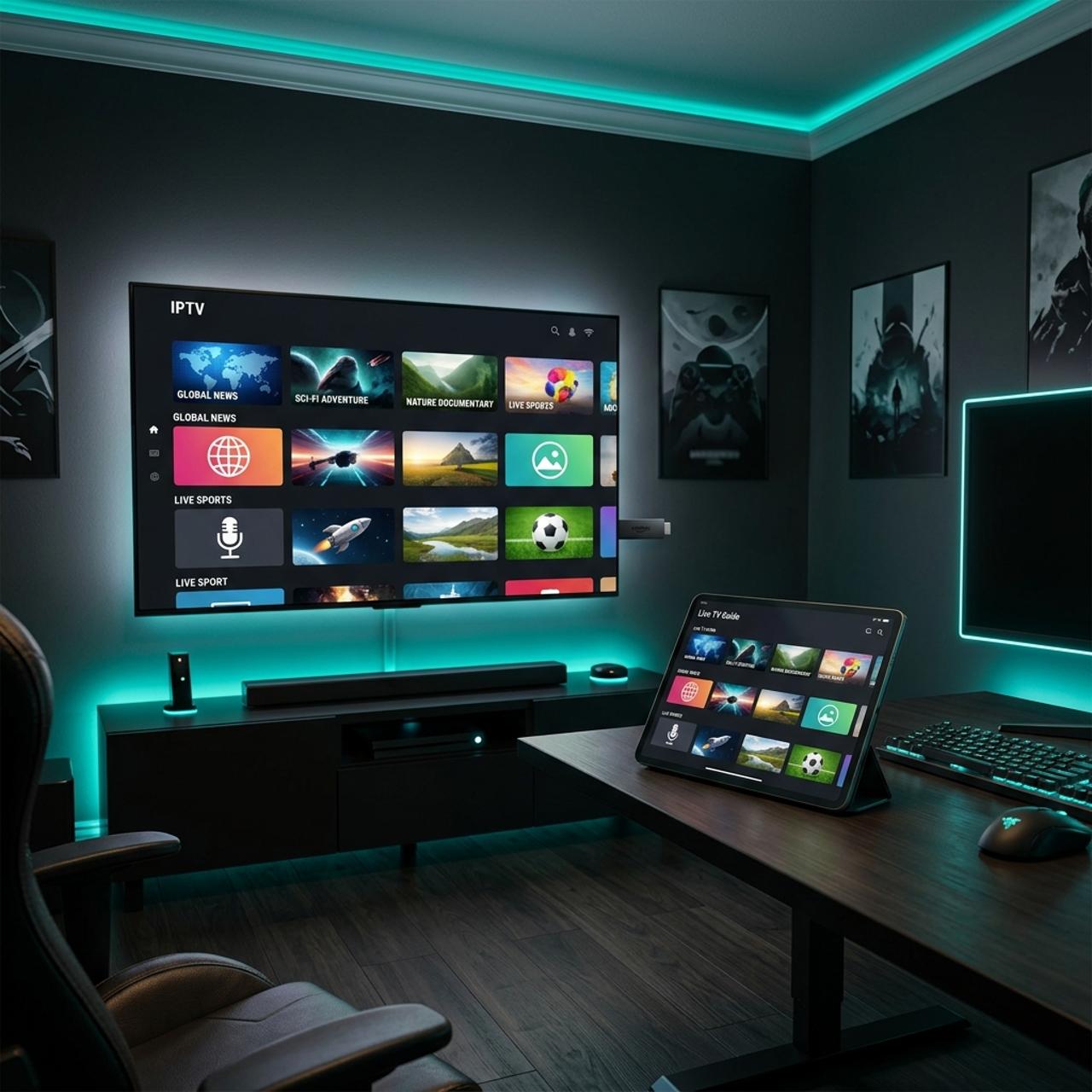
How to Install IPTV on Firestick: The Ultimate 2026 Guide
Tired of paying a fortune for cable channels you never watch? Millions of cord-cutters have already made the switch to IPTV on Firestick and if you're still fumbling through confusing setup guides, outdated tutorials, or hitting walls with buffering and app errors, this is the guide that finally gets you across the finish line. Whether you're brand new to streaming or you've tried before and given up, every step here is written in plain English with zero assumptions about your tech knowledge.
Solving your IPTV setup correctly the first time is crucial because a bad install leads to constant buffering, expired M3U playlists, and apps that crash mid-stream, all of which kill the experience you're paying for. Getting the foundation right means smooth, reliable playback every single time you sit down to watch.
Core Concepts & Need-To-Know Info
- What is IPTV: Internet Protocol Television delivers live TV and VOD content over your internet connection instead of a cable line or satellite dish.
- M3U Playlist / M3U URL: This is a text-based file your IPTV app reads to load all your channels. Your IPTV provider gives you this link when you subscribe.
- Xtream Codes API: An alternative login method (username, password, and server URL) that some apps like TiviMate and IPTV Smarters support. It's more stable than a raw M3U URL.
- Firestick sideloading: Amazon doesn't list IPTV apps in its official store, so you install them via a third-party tool called Downloader. This is 100% legal.
- ISP Throttling: Your Internet Service Provider can detect and slow down streaming traffic. A VPN masks your activity and restores full speed.
- Minimum internet speed: You need at least 10 Mbps for HD streaming and 25 Mbps for 4K. Wired ethernet via a Firestick ethernet adapter is always more stable than Wi-Fi.
- APK files: Android-based app installation packages. IPTV apps like TiviMate and IPTV Smarters Pro are distributed as APK files for sideloading.
Step-by-Step Guide
- Step 1: Enable Apps from Unknown Sources:
- On your Firestick home screen, go to Settings, My Fire TV, Developer Options. Toggle Apps from Unknown Sources to ON. If you see a warning prompt, select Turn On. This unlocks your device to accept sideloaded apps like IPTV players.
- Step 2: Install the Downloader App:
- Press the Home button and go to the Search icon at the top of the screen. Type Downloader and select the orange and white Downloader app by AFTVnews. Click Download, then Open once installation completes. This is your gateway for installing any IPTV app.
- Step 3: Enable Downloader to Access Storage:
- Before using Downloader, go to Settings, Applications, Manage Installed Applications, Downloader, Permissions. Make sure Storage permissions are enabled. Without this, Downloader cannot save APK files.
- Step 4: Download Your IPTV App APK:
- Open Downloader and tap the URL bar. Type the direct APK download link for your chosen IPTV player. For IPTV Smarters Pro, the official URL is typically available from the Smarters website. For TiviMate, search for the current APK mirror link. Type carefully, one wrong character breaks the download.
- Step 5: Install the APK:
- Once the APK downloads, Downloader will automatically prompt you to install it. Select Install, wait for the process to complete, then select Done (not Open, you'll configure it next). Go back into Downloader and delete the APK file to free up storage space.
- Step 6: Open Your IPTV App and Add Your Playlist:
- Navigate to your app either through the home screen or Settings, Applications, Manage Installed Applications. Open the app and look for Add Playlist or Add New User. Enter your M3U URL or your Xtream Codes credentials (server URL, username, and password) provided by your IPTV subscription service. Tap Add or Connect.
- Step 7: Wait for the EPG and Channel List to Load:
- Depending on how large your channel list is, the initial load can take 1-5 minutes. Your Electronic Program Guide (EPG) pulls TV schedule data and populates automatically. Once loaded, you'll see all your live channels, VOD library, and sports packages organized by category.
- Step 8: Test Playback and Check Picture Quality:
- Click any live channel and confirm it plays without buffering. Try a sports channel and a movie from your VOD section. If playback is smooth, your setup is complete. If you experience buffering, jump to the troubleshooting section below.
Imagine settling in for a Champions League final, only to have your stream freeze at minute 89 because your ISP throttled your connection or your free VPN hit its daily data cap. These aren't hypothetical situations, they happen constantly to people who skip the protective steps. A paid, no-logs VPN like ExpressVPN or NordVPN running in the background eliminates the throttling issue entirely and keeps your streaming traffic private.
Best VPNs to Stop ISP Throttling on Firestick
- ExpressVPN: The gold standard for Firestick. Has a native Fire TV app, lightning-fast servers, and a no-logs policy. Consistently the top pick in real-world IPTV streaming tests.
- NordVPN: Excellent speeds with its NordLynx protocol. Offers dedicated streaming servers and a Firestick-compatible app available through the Amazon App Store.
- Surfshark: Best value option with unlimited simultaneous connections. Solid for households running multiple IPTV devices at once.
- IPVanish: Popular in IPTV communities specifically because of its fast US servers and Firestick app. Good choice if your provider's servers are US-based.
To install a VPN on your Firestick, search for it directly in the Amazon App Store, most top VPNs have official Fire TV apps. Connect to a server in the same country as your IPTV provider's servers for the best performance.
TiviMate vs IPTV Smarters: Which App Should You Use?
- TiviMate: Widely considered the best IPTV player for Firestick. It has a slick, cable-TV-style interface, excellent EPG support, multi-panel layout, catch-up TV, and a recording feature. The free version is functional, but TiviMate Premium ($5.99/year) unlocks everything. It requires sideloading via the Downloader method above.
- IPTV Smarters Pro: Beginner-friendly with a straightforward setup wizard. It supports both M3U URLs and Xtream Codes. It's free, widely compatible, and great for users who want something simple without much configuration.
- GSE Smart IPTV: A strong alternative if you're managing multiple playlists across different providers. It handles large M3U files efficiently and has solid EPG management.
For most users, start with IPTV Smarters Pro to confirm your subscription works, then migrate to TiviMate for the superior long-term experience.
Common Setup Mistakes & How to Fix Them
- Mistake: Forgetting to enable Unknown Sources: Your Firestick will block the APK install silently. Always check Developer Options first.
- Mistake: Using an outdated APK version: Old app versions have bugs and compatibility issues with newer M3U formats. Always download the latest release.
- Mistake: Entering Xtream Codes details incorrectly: The server URL must include the correct port number (e.g., http://yourserver.com:8080). Missing the port is the most common Xtream Codes login failure.
- Mistake: Not clearing cache: After weeks of use, your IPTV app accumulates cached data that causes slowdowns and crashes. Go to Settings, Applications, Manage Installed Applications, your app, Clear Cache monthly.
- Fix for no channels loading: Refresh your playlist from within the app settings. If that fails, your subscription may have expired or your provider's server is temporarily down.
Network Requirements for 4K IPTV Streaming
- Minimum 25 Mbps dedicated: To the streaming device for stable 4K. If other devices are competing for bandwidth simultaneously, you need 50 Mbps or more total.
- 5 GHz Wi-Fi over 2.4 GHz: The 2.4 GHz band is crowded and slower. Switch your Firestick to your router's 5 GHz network in Settings, Network.
- Ethernet adapter for Firestick: The Amazon Ethernet Adapter for Fire TV eliminates Wi-Fi interference entirely. At under $15, it's the single best upgrade you can make for IPTV reliability.
- Router placement matters: The closer your Firestick is to your router, the stronger the signal. Walls, floors, and microwaves all degrade 2.4 GHz Wi-Fi signal.
- QoS settings on your router: Quality of Service lets you prioritize streaming traffic over other devices. Log into your router admin panel and set your Firestick's IP address as a high-priority device.
Troubleshooting: Fixing Playlist and Buffering Errors
- Buffering every few minutes: Most likely ISP throttling or a weak Wi-Fi signal. Try a VPN, switch to 5 GHz, or use an ethernet adapter.
- Invalid M3U URL error: Re-copy your M3U link from your provider's portal. Check for accidental spaces at the beginning or end of the URL.
- Channels load but show black screen: The video codec may not be supported by your app's default player. In TiviMate, go to player settings and switch to an external player like MX Player or VLC.
- EPG not loading: Some providers use a separate EPG URL. Check your provider's welcome email for an EPG URL and enter it manually in your app's EPG settings.
- App crashes on launch: Uninstall and reinstall the app. Clear cache beforehand. Make sure your Firestick has at least 500 MB of free storage.
- Specific channels not working: That channel may be temporarily down on your provider's server. Test it again in 30 minutes. If persistent, contact your provider.
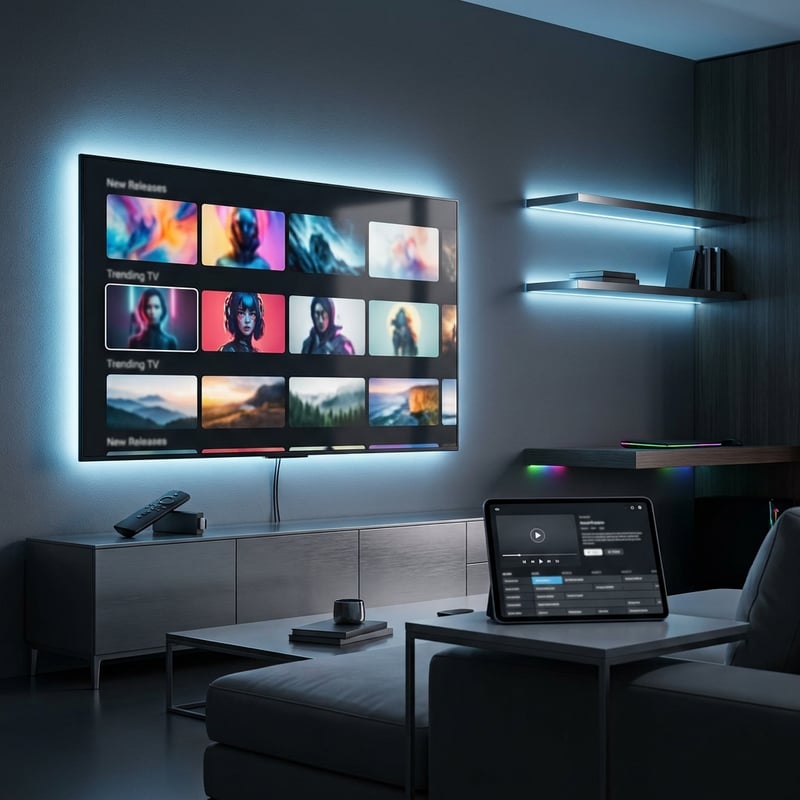
Learning how to install IPTV on Firestick correctly the first time saves you hours of frustration, buffering headaches, and wasted subscription money. With the right app, a solid VPN to handle ISP throttling, and a properly entered M3U or Xtream Codes connection, your Firestick transforms into the most powerful streaming device in your living room. Follow these steps, bookmark this guide for troubleshooting, and check out our full channel list and pricing plans to find the perfect IPTV subscription for your needs.
Frequently Asked Questions
Ready to get started?
Try our service risk-free with a 24-hour free trial.
Related Articles
Is IPTV Legal in Canada? Understanding the Laws and Implications
Explore the legality of IPTV in Canada and safe streaming.
How to Download IPTV Stream Player on Firestick: A Complete Guide
Step-by-step guide to download IPTV Stream Player on Firestick.
Is IPTV Legal? Unpacking the Myths and Facts You Need to Know
Explore the legality of IPTV and its implications for users.