
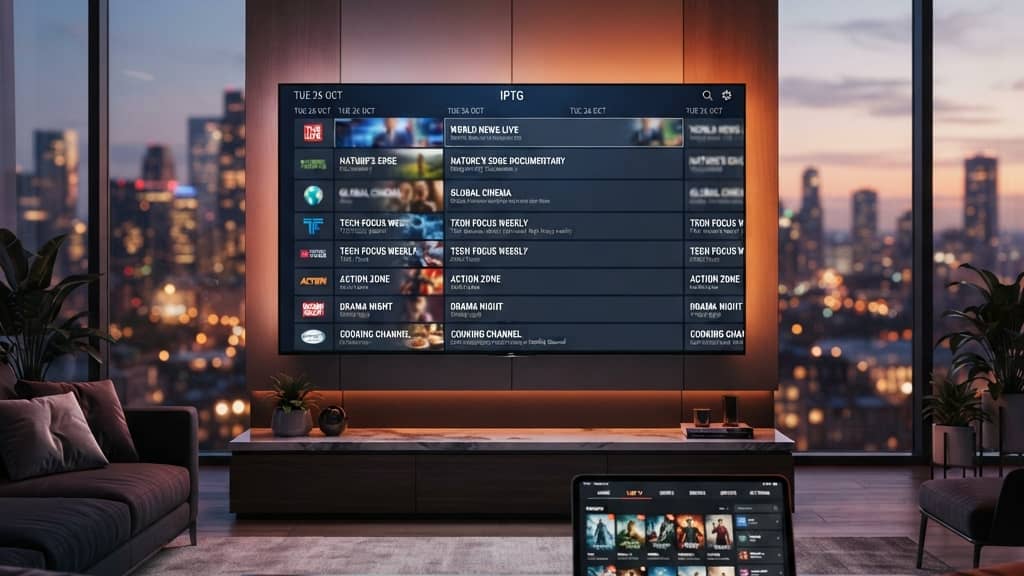
Mastering IPTV Smarters Pro: The Complete 2026 Guide

You just paid for an IPTV subscription, you've got your M3U URL or Xtream Codes credentials sitting in your inbox, and now you're staring at IPTV Smarters Pro wondering what to do next. Maybe the app looks more complicated than you expected, or maybe you've already tried entering your details and got nothing but a loading spinner or an error message. Either way, you're not alone and you're in exactly the right place. IPTV Smarters Pro is one of the most powerful IPTV players available on Firestick, Android TV, and Smart TVs, but only when it's set up correctly. This guide walks you through every single step, every setting, and every trap to avoid so you get live TV, VOD, and sports streaming working perfectly from day one.
Getting IPTV Smarters Pro set up properly isn't just about convenience, it's the difference between a premium streaming experience and a frustrating mess of error codes. A correctly configured app with the right playlist and player settings means smooth 4K streams, reliable EPG (Electronic Programme Guide), and instant channel switching with no lag.
Core Concepts & Need-To-Know Info
- M3U URL / M3U Playlist: A link ending in .m3u or .m3u8 provided by your IPTV supplier. It contains all your channel and VOD data. Even one wrong character breaks the entire connection.
- Xtream Codes API: An alternative login method using a server URL, username, and password. More stable and faster to load than M3U in most cases.
- EPG (Electronic Programme Guide): The TV guide that shows what's on now and what's coming up. Requires a separate EPG URL or is built into Xtream Codes logins automatically.
- ISP Throttling: Your internet provider deliberately slowing down streaming traffic. A VPN fixes this.
- External Player: A third-party video player like MX Player or VLC used instead of the built-in player. Useful for fixing playback errors on specific streams.
- Multiscreen / Multi-connection: Using your IPTV subscription on more than one device simultaneously. Most plans have a connection limit and exceeding it causes streams to drop.
- Internet Speed Requirement: You need at minimum 10 Mbps per stream for HD, and 25 Mbps or more for stable 4K content.
Step-by-Step Guide
- Step 1: Install IPTV Smarters Pro on Your Device:
- On a Firestick, go to Settings, then My Fire TV, then Developer Options and turn on Apps from Unknown Sources. Then open the Downloader app (install it free from the Amazon App Store if you haven't already), type in the official IPTV Smarters Pro APK URL from the developer's website, and follow the prompts to sideload it. On Android TV or a standard Android device, search for IPTV Smarters Pro directly in the Google Play Store and tap Install.
- Step 2: Open the App and Choose Your Login Method:
- Launch IPTV Smarters Pro. You'll see a welcome screen with three options: Login with Xtream Codes API, Load Your Playlist / Xtream URL, and Login with Stalker Portal. The vast majority of IPTV providers use either Xtream Codes or M3U. Check your welcome email from your provider: if they gave you a server URL, username, and password, choose Xtream Codes. If they gave you a single long link, choose the M3U playlist option.
- Step 3: Enter Your Xtream Codes Credentials (Recommended Method):
- Tap Login with Xtream Codes API. In the Any Name field, type a nickname for this account (e.g., My IPTV). Enter your server URL exactly as provided, including http:// or https:// and the port number if included. Type your username and password precisely. One wrong letter or extra space will cause an authentication error. Tap Add User and wait for the playlist to load. This may take 10 to 60 seconds depending on your server and internet speed.
- Step 4: Add an M3U Playlist (Alternative Method):
- If using an M3U URL, tap Load Your Playlist / Xtream URL. Tap Add New Playlist. Give it a name, then paste your M3U URL into the Playlist URL field. If your provider also gave you an EPG URL, paste it into the EPG URL field now: this populates your TV guide automatically. Tap Add and wait for channels to populate. Large playlists with thousands of channels can take 1 to 2 minutes.
- Step 5: Navigate Your Channel List and Categories:
- Once loaded, you'll see tabs at the top: Live TV, Movies, Series, and Catch-Up (if supported by your provider). Tap Live TV to see your channel categories such as Sports, News, Entertainment, and so on. Browse categories or use the search icon to find a specific channel. Tap any channel to begin streaming. If it doesn't load immediately, wait 5 seconds: the buffer is initializing.
- Step 6: Configure Your Player Settings for Best Quality:
- Inside any stream, tap the screen to reveal controls. Hit the settings gear icon. Under Player Selection, switch between the built-in player and an external player like MX Player if a stream is stuttering or showing a black screen. For 4K content, make sure Hardware Decoding is enabled in the app's main settings (Menu, then Settings, then Player Settings, then Enable Hardware Decoder). This offloads video processing to your device's chip and dramatically reduces buffering.
- Step 7: Set Up Parental Controls and Multi-Account Management:
- Go to the main Menu and tap Settings. Under Parental Control, set a PIN to lock specific categories. If you have multiple IPTV subscriptions, tap Add New User from the main screen to manage them all inside one app: no need to log out and back in.

Imagine this: it's Sunday afternoon, a massive Premier League match is about to kick off, you sit down with your Firestick remote and the stream freezes every 30 seconds because your ISP is throttling your connection during peak hours. This is the single most common complaint from IPTV users, and it's 100% preventable. Equally frustrating is entering Xtream Codes credentials with a typo in the server URL and spending an hour troubleshooting what looks like a server outage but is actually just a misplaced colon in the address field.
Best VPNs To Stop ISP Throttling
ISP throttling is the silent killer of IPTV streams. Your internet provider can see that you're streaming video and deliberately slow down that traffic type, especially in the evenings and on weekends when demand is highest. A VPN encrypts your traffic so your ISP can't identify or throttle it.
- ExpressVPN: Consistently the fastest option for IPTV streaming. Its MediaStreamer feature works natively on Firestick, and servers in 94 countries mean you'll always find a fast connection.
- NordVPN: Excellent for IPTV with its SmartPlay technology and NordLynx protocol delivering speeds well above what standard HD or even 4K streams require. Strong no-logs policy for privacy.
- Surfshark: The best budget option with unlimited simultaneous connections, perfect if you want to protect every streaming device in your home on one subscription.
- IPVanish: Popular specifically in the Firestick and Kodi community because it installs directly from the Amazon App Store with no sideloading required.
Connect your VPN before opening IPTV Smarters Pro and always select a server in the same country as your IPTV provider's server for the lowest latency.
Common Setup Mistakes & How To Fix Them
- Playlist not loading or stuck on Loading: This usually means your M3U URL has expired, your subscription has lapsed, or there's a typo. Contact your provider for a fresh URL and paste it again.
- Channels show but won't play (black screen): Switch from the internal player to MX Player under Player Settings. Also check that Hardware Decoder is enabled. A black screen with audio is almost always a decoder issue.
- EPG showing wrong time or missing data: Go to Settings, then EPG Settings and manually enter your time zone offset. Also try tapping Re-Fetch EPG to force a fresh guide download.
- App crashes on Fire TV after update: Clear the app's cache and data (Settings, then Applications, then Manage Installed Applications, then IPTV Smarters Pro, then Clear Cache and Clear Data), then re-add your playlist.
- Buffering on fast internet connections: Disable your VPN temporarily to test. If streams work fine without VPN, switch to a different VPN server. If they buffer with and without VPN, contact your IPTV provider: it's a server-side issue.
Recommended Apps: TiviMate vs IPTV Smarters Pro
Both are elite IPTV players, but they serve slightly different audiences.
- IPTV Smarters Pro is better for beginners because of its intuitive UI, built-in multi-account management, and the ability to switch between M3U and Xtream Codes logins easily without technical knowledge.
- TiviMate is preferred by power users and enthusiasts because of its superior EPG display, smoother channel switching, and more customizable interface, but it requires a paid premium subscription (around $5 per year) to unlock multiple playlists.
- IPTV Smarters Pro handles VOD (movies and series) better with a Netflix-style browsing layout that makes navigating large libraries far more enjoyable.
- TiviMate excels at live TV with its channel zapping speed and picture-in-picture mode, ideal for sports fans who watch multiple games.
For most users starting out and learning how to use IPTV Smarters Pro, stick with Smarters until you need advanced EPG or multi-playlist features. Then consider adding TiviMate alongside it.
Network Requirements for 4K Streaming
Your internet connection is just as important as your app configuration.
- Minimum for HD (1080p): 10 Mbps dedicated to the streaming device, not shared across all devices in your home simultaneously.
- Minimum for 4K UHD: 25 Mbps per stream, ideally 50 Mbps if other devices are also online.
- Wired vs. Wi-Fi: An ethernet adapter for your Firestick (via a USB-C hub) dramatically reduces buffering compared to Wi-Fi, especially in apartments with congested wireless networks.
- Router placement: Your Firestick or Android TV box should be within clear line-of-sight of your router. Walls, especially concrete ones, cut Wi-Fi signal strength by up to 50%.
- DNS settings: Change your device DNS to 1.1.1.1 (Cloudflare) or 8.8.8.8 (Google) for faster playlist loading and fewer timeout errors.
Troubleshooting: Fixing Playlist Errors in IPTV Smarters Pro
When your playlist throws errors, work through these fixes in order.
- Error: Authentication Failed: Your Xtream Codes username or password is wrong, or your subscription has expired. Double-check credentials character by character and confirm your plan is active with your provider.
- Error: Playlist Empty: The M3U URL is valid but returning no channels. This happens when a provider migrates servers. Request a new M3U link immediately.
- Channels disappeared after working fine: Your provider may have changed their server URL. Delete the existing playlist in Smarters and re-add it with the updated link from your provider's panel.
- Catch-Up not working: Not all IPTV plans include catch-up TV. If your provider supports it, enable it under Settings, then Catch-Up Settings and ensure your plan explicitly includes this feature.
Mastering how to use IPTV Smarters Pro takes about 20 minutes of your time and saves you from months of buffering, broken playlists, and missed sporting events. With the right login method, correct player settings, a reliable VPN blocking ISP throttling, and the troubleshooting knowledge from this guide, you're set up for a streaming experience that genuinely rivals and often beats traditional cable TV. Get it configured correctly once, and then explore our full channel list and pricing plans to make the most of every feature your subscription includes.
Frequently Asked Questions
Ready to get started?
Try our service risk-free with a 24-hour free trial.
Related Articles
Ad-Supported Streaming Services in 2026: Are Free Tiers Worth the Ads?
Honest 2026 comparison of ad-supported streaming services like Tubi, Pluto TV, and Peacock Free against affordable ad-free IPTV alternatives.

Discover the Best IPTV UK Subscriptions for 2026: Reviews & Tips
Uncover the best IPTV subscriptions available in the UK for 2026.
Best IPTV Player for Windows PC in 2026: Top 5 Apps Compared
A 2026 comparison of the top IPTV player apps for Windows 10 and 11 on 4K decoding, EPG support, and CPU efficiency on desktop and laptop PCs.