How to Use IPTV: The Complete Guide for 2026

Sick of paying $150+ a month for a cable bundle stuffed with channels you never watch? Or maybe you've already jumped into IPTV but you're stuck staring at a buffering wheel every time the big game kicks off. Either way, you're in the right place. Getting IPTV working properly — actually working, not just technically installed — comes down to knowing the right steps, the right apps, and the right settings from day one. This guide walks you through exactly how to use IPTV on any device, from Firestick to Android TV to Smart TV, so you can start streaming live TV, movies, and sports in HD or 4K without the headaches.
Solving your IPTV setup correctly from the start isn't just about convenience — it's the difference between a legitimate cord-cutting win and a frustrating experience that sends you back to cable. A bad setup leads to constant buffering, playlist errors, and dropped streams right when you need them most.
Core Concepts & Need-To-Know Info
- M3U Playlist URL: This is the link your IPTV provider gives you. It contains all your channel data. Every IPTV app needs this URL to load your channels. Guard it carefully — it's tied to your subscription.
- Xtream Codes API: An alternative login method using a server URL, username, and password instead of an M3U link. Many premium providers prefer this format because it's more stable.
- VOD (Video on Demand): The on-demand movie and TV show section of your IPTV service. Quality and library size vary massively by provider.
- EPG (Electronic Program Guide): The TV guide overlay that shows what's currently on and what's coming up. A good EPG URL from your provider makes navigation far easier.
- Internet Speed Requirements: SD streams need at least 10 Mbps, HD needs 25 Mbps, and 4K streams require a stable 50 Mbps or more. Wireless connections introduce lag — wired Ethernet is always better.
- ISP Throttling: Internet Service Providers often detect and slow down streaming traffic, especially on IPTV. This is one of the leading causes of buffering on otherwise fast connections.
Step-by-Step Guide
- Step 1: Choose and Purchase an IPTV Subscription:
- Before anything else, you need a reliable IPTV provider. Look for providers that offer a free trial, have multiple server connections, and support both M3U and Xtream Codes login. Avoid providers with no trial and no verifiable reviews. Once you subscribe, your provider will send you either an M3U URL or an Xtream Codes login (server URL + username + password) via email.
- Step 2: Enable Downloader on Firestick (Firestick Users Only):
- Navigate to your Firestick home screen and go to Settings, My Fire TV, Developer Options. Toggle on Apps from Unknown Sources and ADB Debugging. Then go to the Search function and download the Downloader app from the Amazon App Store. This unlocks sideloading so you can install third-party IPTV apps.
- Step 3: Install Your IPTV Player App:
- For Firestick, use Downloader to navigate to the APK download URL for your chosen player (TiviMate, IPTV Smarters Pro, or GSE Smart IPTV are top choices). For Android TV boxes, head to the Google Play Store and search for the app directly. For Smart TVs (Samsung, LG), check your TV's app store for IPTV Smarters or use the built-in browser to sideload.
- Step 4: Open the App and Add Your Playlist:
- Launch your IPTV player app. Look for Add Playlist, Add Provider, or a + icon. Select either M3U URL or Xtream Codes depending on what your provider gave you. Enter your M3U link exactly as provided — one wrong character breaks it entirely — or input your Xtream Codes server address, username, and password.
- Step 5: Add Your EPG (TV Guide) URL:
- Most apps will prompt you for an EPG source during setup or in settings. Your provider should supply this URL. Paste it in, set the time zone correctly, and the app will load program guide data. This step is skippable but makes the experience dramatically better.
- Step 6: Organize Your Channels and Test Streams:
- Once your playlist loads, you'll see your full channel list. Use the app's grouping or favorites feature to pin your most-watched channels to the top. Test several channels across different categories — live sports, a movie on VOD, and a news channel — to confirm everything is streaming cleanly before settling in.
- Step 7: Connect a VPN (Highly Recommended):
- Install a trusted VPN app like ExpressVPN or NordVPN on your Firestick or streaming device. Connect to a server in your country or the nearest location for best speeds. Enable the VPN before launching your IPTV app. This bypasses ISP throttling and protects your connection.
Imagine settling in for a Champions League final, everything set up, kickoff in two minutes — and the stream buffers every 30 seconds because your ISP throttled your connection. This is exactly the real-world scenario a VPN prevents. Equally frustrating is an M3U URL that was entered with one wrong letter two months ago and has been causing random crashes ever since that nobody could diagnose.
Best VPNs to Stop ISP Throttling for IPTV
ISP throttling is responsible for a massive percentage of IPTV buffering complaints, and a quality VPN is the cleanest fix available. ExpressVPN is the gold standard for streaming, with fast servers in 90+ countries, a dedicated Firestick app, and MediaStreamer DNS for devices that don't support VPN natively. NordVPN offers excellent speeds with NordLynx protocol, a large server network, and obfuscated servers that disguise VPN traffic from aggressive ISPs. Surfshark is the best budget option, offering unlimited simultaneous connections so you can protect your Firestick, TV box, and phone all under one subscription. IPVanish is popular specifically in the IPTV community because it integrates directly with Kodi and has a clean Firestick app with a strong US-based server network. Always enable your VPN before launching your IPTV app, not after — connecting mid-session can interrupt active streams and force a full reload of your playlist.
TiviMate vs IPTV Smarters Pro: Which App Should You Use?
Choosing the right IPTV player app makes a bigger difference than most beginners realize. TiviMate is widely considered the best IPTV player for Firestick and Android TV — the interface is polished, EPG integration is seamless, channel switching is near-instant, and the Premium unlock at $5.99 per year is genuinely worth it. IPTV Smarters Pro is the better choice if you're on iOS, Smart TV, or want a cross-platform solution, as it's more beginner-friendly and the VOD interface is easier to navigate for new users. GSE Smart IPTV is a solid third option for users with complex multi-playlist setups or those who want granular control over stream settings and external player integration. If you're on a Firestick or Android TV box and want the best possible experience, install TiviMate. If you're setting up across multiple devices or for a less tech-savvy family member, go with IPTV Smarters Pro.
Common IPTV Setup Mistakes and How to Fix Them
- Wrong time zone in EPG settings: If your program guide shows the wrong show times, go into app settings, find the EPG or time zone section, and adjust it to your correct UTC offset.
- Not refreshing the playlist after provider updates: IPTV providers occasionally update their M3U links or server addresses. If channels stop working suddenly, go into your app's playlist settings and hit Update Playlist or re-enter the URL fresh.
- Running too many background apps on Firestick: Firestick devices have limited RAM. Before streaming, hold the home button, go to App Settings, and force-close everything running in the background.
- Using the wrong video player for certain streams: Some streams encoded in specific formats won't play inside the IPTV app's built-in player. TiviMate and Smarters both allow you to set an external player like MX Player or VLC, which often instantly fixes streams that show a black screen.
Network Requirements for Smooth IPTV Streaming
- Minimum speeds by quality tier: SD (480p) needs 5-10 Mbps, HD (1080p) needs 15-25 Mbps, 4K/Ultra HD needs 50 Mbps or more with low latency.
- Wired Ethernet beats Wi-Fi every time: For Firestick, pick up an Amazon Ethernet Adapter for Fire TV (around $15). Plug directly into your router. This alone eliminates the majority of mid-stream buffering caused by wireless interference.
- Router placement matters: If you must use Wi-Fi, ensure your router is in the same room or directly adjacent. Walls, floors, and other electronics all degrade signal quality. Upgrade to a mesh network system if your home layout makes direct placement impossible.
- Reboot your router weekly: ISP-provided routers develop congestion in their memory tables over time. A weekly reboot keeps routing tables clean and speeds consistent.
Troubleshooting: Fixing Playlist and Stream Errors
- Playlist fails to load entirely: Double-check your M3U URL or Xtream Codes credentials. Log into your provider's panel and copy the URL fresh. If correct, your subscription may have expired or the provider's server may be temporarily down.
- Specific channels buffer while others work fine: This is almost always a server-side issue. The specific channel's stream is on an overloaded server. Contact your provider, or wait 10-15 minutes and try again. A VPN server switch can sometimes reroute you to a less congested path.
- Black screen on a channel with no error message: This typically means a codec incompatibility. In your IPTV app settings, switch the video decoder from Hardware to Software (or vice versa). Alternatively, assign an external player like VLC to that channel group.
- EPG not loading or showing blank guide: Re-enter your EPG URL from your provider's portal. Some providers rotate EPG URLs seasonally. If the URL is correct, try clearing the app's cache and reloading the EPG from scratch within the app settings.
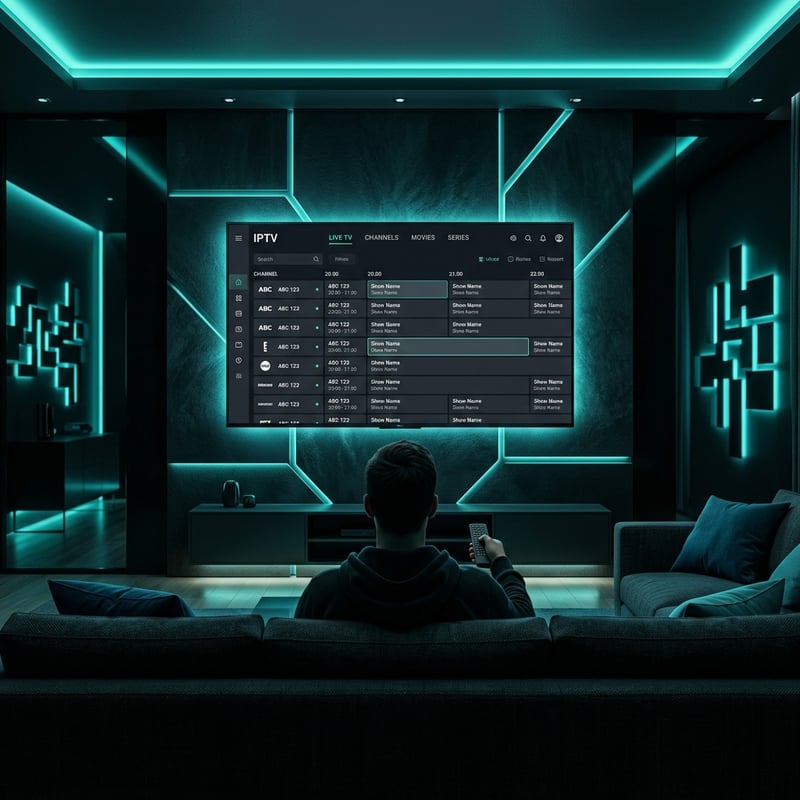
Mastering how to use IPTV isn't a one-time setup task — it's knowing your setup well enough to diagnose and fix any issue that comes up quickly. Follow this guide, stay on top of your network health, use a reputable VPN, and pick the right app for your device, and you'll wonder how you ever justified a cable bill. Ready to get started? Check out our channel list and pricing plans to find the subscription that fits your needs perfectly.
Frequently Asked Questions
Ready to get started?
Try our service risk-free with a 24-hour free trial.
Related Articles
Free IPTV Playlists and M3U Links What Actually Works in 2026
Free IPTV playlists promise thousands of channels without paying a dime, but most links die within 48 hours or freeze during peak hours. This guide breaks down where to find genuine legal public M3U playlists, the hidden risks of scraper links, how to test URLs in VLC, and why a low-cost trial is the smarter move for daily streaming.
How Does IPTV Work? Understanding the Technology Behind Streaming
Explore the inner workings of IPTV and its benefits.
Roku Projector Setup and How to Build a Budget Home Cinema in 2026
A complete guide to building an affordable home cinema using Roku-powered projectors or by connecting a Roku streaming stick to a standard projector. Covers hardware selection, room optimization, audio pairing, and streaming configuration for massive screen entertainment at a fraction of traditional television costs.