
Understanding EPG IPTV: A Comprehensive Guide for 2026
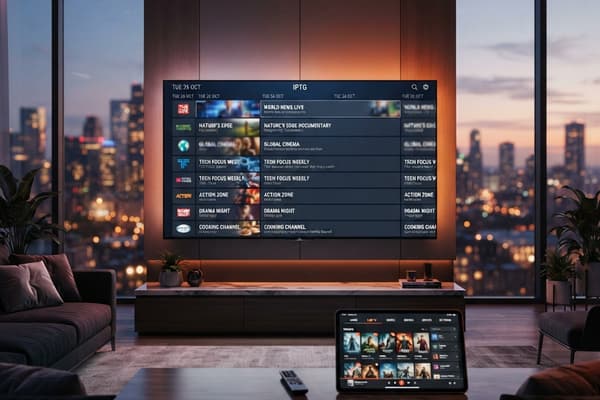
You're finally watching IPTV, hundreds of channels at your fingertips — but every time you try to figure out what's on, you're staring at a blank grid or scrolling through an endless, unlabeled channel list with no show times, no descriptions, nothing. It feels like you're back in 1987 flipping through channels with no cable guide. That frustration is completely fixable, and the answer is EPG — the Electronic Program Guide that transforms your IPTV setup from a cluttered mess into a polished, Netflix-quality experience. This guide breaks down exactly what EPG IPTV is, why it matters, and how to get it working on TiviMate, IPTV Smarters, or any Android-based player in minutes.
Without a properly configured EPG, you're flying blind through hundreds of channels and wasting the full potential of your IPTV subscription. Getting this right is the single biggest quality-of-life upgrade you can make to your streaming setup, and it costs you nothing extra.
Core Concepts & Need-To-Know Info
- EPG stands for Electronic Program Guide: it's the TV schedule system that shows what's playing now, what's coming next, and what's on later across all your IPTV channels.
- EPG data is delivered via an XMLTV URL: this is a special web address your IPTV provider gives you that feeds live schedule data directly into your app.
- Your IPTV provider usually supplies the EPG URL: check your welcome email, provider dashboard, or subscription confirmation for a link ending in .xml or .xml.gz.
- M3U playlist and EPG are separate but linked: your M3U playlist carries the channel streams; the EPG URL carries the schedule data. Both need to be correctly entered for the guide to work.
- Channel IDs must match: EPG only populates correctly when the channel IDs inside your M3U file match the IDs inside the XMLTV data. Mismatches leave channels blank in the guide.
- Xtream Codes API providers often auto-supply EPG: if your provider uses Xtream Codes, many apps like Smarters and TiviMate can pull EPG automatically without needing a separate URL.
- EPG refresh frequency matters: guides typically refresh every 12 to 24 hours. Apps like TiviMate let you force a manual refresh if data looks outdated.
- Third-party EPG sources exist: sites like epg.best, i8.live, and ProgTV offer XMLTV data for providers that don't supply their own guide.
Step-by-Step Guide
- Step 1: Open TiviMate and Access Settings:
- From the TiviMate home screen, press the hamburger menu (three lines) on the left sidebar. Scroll down and select Settings, then tap Playlists. Here you'll see your currently loaded M3U playlist.
- Step 2: Select Your Active Playlist:
- Tap on your existing playlist name. This opens the playlist configuration screen where you can edit both the stream URL and the associated EPG source. If you haven't added a playlist yet, tap Add Playlist first and enter your M3U URL or Xtream Codes credentials before continuing.
- Step 3: Locate the EPG URL Field:
- Inside the playlist settings, scroll down until you see the field labeled EPG URL or XMLTV Guide URL. This is where your electronic program guide data gets connected to your channel list.
- Step 4: Enter Your XMLTV EPG URL:
- Copy the EPG URL from your IPTV provider (usually found in your customer portal or welcome email). Paste it exactly into the EPG URL field. A typical URL looks like: http://yourprovider.com/xmltv.php?username=XXXX&password=XXXX. Do not add spaces or alter the URL.
- Step 5: Save and Trigger an EPG Refresh:
- Tap Save or OK to confirm. Then go back to Settings, EPG and tap Update EPG Now. TiviMate will download the guide data — this can take 30 seconds to 3 minutes depending on your connection speed and the size of the EPG file.
- Step 6: Verify the Guide Is Populating:
- Return to the main channel grid and press the OK/Select button on any channel. You should now see current and upcoming show information displayed below or beside the channel. If some channels still appear blank, proceed to the troubleshooting section below.
- Step 7: Set EPG Auto-Refresh:
- In Settings, EPG, enable Auto Update and set the refresh interval to every 12 or 24 hours. This keeps your guide current without any manual effort.

In real-world scenarios, the most common disaster is copying an EPG URL with a trailing space or a missing character — the app accepts it without error but the guide never loads, and users spend hours troubleshooting the wrong thing. Always double-check the URL by pasting it into a browser first to confirm it returns XML data. ISP throttling is the other silent killer — your streams play fine at low resolution, but the EPG times out because it's a bulk data download, not a stream, and throttling hits it harder.
Troubleshooting EPG IPTV: Fixing Blank or Missing Guide Data
A blank program guide after setup is the most common complaint, and it almost always comes down to one of three causes.
- Channel ID mismatch: Open your M3U file in a text editor and look at the tvg-id values for each channel. Then open your XMLTV file and search for the same IDs. If TiviMate's IDs don't match the EPG file's IDs, no data will map correctly. Contact your provider and ask them to verify ID alignment.
- EPG URL authentication failure: Some providers generate unique EPG URLs per account. If you're using a shared or outdated URL, it will return an empty or unauthorized response. Log into your provider portal and regenerate a fresh EPG URL.
- App cache blocking the update: On Firestick, go to Settings, Applications, Manage Installed Applications, TiviMate, Clear Cache. Then relaunch and try the EPG update again. Corrupted cache is responsible for roughly 20% of EPG failures.
- Time zone mismatch: If your guide shows show times that are several hours off, check TiviMate's EPG time offset setting under Settings, EPG, Time Offset and adjust to match your local time zone.
TiviMate vs IPTV Smarters Pro: Which Handles EPG Better?
Both apps support XMLTV EPG, but they behave differently in practice.
- TiviMate offers the most robust EPG integration — it supports multiple simultaneous EPG sources, allows manual channel-to-guide mapping, and has a dedicated EPG update scheduler. For anyone serious about IPTV, TiviMate Premium (around $5/year) is the clear winner.
- IPTV Smarters Pro handles EPG passably well for Xtream Codes users since it auto-fetches guide data from the provider's server without any manual URL entry. However, it offers no manual mapping and struggles with large XMLTV files on older hardware.
- GSE Smart IPTV is a solid middle ground with decent XMLTV support and a clean EPG display, though its interface feels dated compared to TiviMate's grid view.
If your provider uses Xtream Codes API and you add your subscription through that method rather than a raw M3U URL, both TiviMate and Smarters will auto-populate the EPG without you needing to find or enter a separate XMLTV URL — which is the easiest route if available.
Best VPNs to Prevent ISP Throttling During EPG and Stream Loading
ISP throttling hits IPTV users hard, and it affects EPG data loading just as much as your actual video streams.
- ExpressVPN is the top choice for Firestick — it has a native Firestick app, MediaStreamer DNS, and consistently bypasses throttling on major ISPs in the US, UK, and Canada.
- NordVPN offers its lightweight NordLynx protocol which adds minimal latency while encrypting your traffic — ideal for preventing your ISP from identifying and throttling IPTV traffic patterns.
- Surfshark is the budget-friendly pick that still delivers reliable speeds, supports unlimited devices, and has a dedicated streaming mode that optimizes for IPTV and VOD content.
- Always connect to a VPN server in the same country as your IPTV provider's servers — connecting to a geographically distant server adds latency and can cause more buffering than it solves.
- Avoid free VPNs entirely — they log your data, cap your bandwidth (often at 500MB/day), and their servers are chronically overloaded, making buffering dramatically worse.
Network Requirements for Smooth EPG and 4K IPTV Streaming
EPG data is lightweight, but your streams are not. Here's what your network actually needs.
- Minimum 25 Mbps for HD IPTV: anything below this and you'll see constant buffering during peak hours, especially with a VPN active.
- 50+ Mbps for 4K VOD and live 4K channels: 4K HEVC streams can demand 15 to 25 Mbps per channel, so your overall connection needs headroom above that.
- Use a wired Ethernet connection where possible: Wi-Fi introduces packet loss and inconsistency that causes buffering even on fast connections. An Ethernet adapter for Firestick costs under $15 and is one of the best IPTV investments you can make.
- Place your router within clear line of sight if Wi-Fi is your only option, and connect your streaming device to the 5GHz band rather than 2.4GHz for better throughput.
- Restart your router weekly — routers accumulate fragmented connection tables over time and a simple restart often resolves mysterious buffering that no app-level fix can address.

Understanding what EPG IPTV is and getting it properly configured is the difference between an IPTV setup that feels like a professional cable service and one that feels like a broken bootleg. Once your XMLTV guide is pulling correctly, your channels are mapped, and your auto-refresh is scheduled, you'll wonder how you ever streamed without it — take a look at our channel list and pricing plans to pair your new EPG knowledge with the best IPTV subscription available.
Frequently Asked Questions
Ready to get started?
Try our service risk-free with a 24-hour free trial.
Related Articles

Discover the Best IPTV Services for Watching Ion Plus in 2026
Find the best IPTV services that stream Ion Plus effortlessly.

Is IPTV Legal in Canada? Understanding the Laws and Implications
Explore the legality of IPTV in Canada and safe streaming.
Mastering IPTV Smarters Pro: The Complete 2026 Guide
Unlock the full potential of IPTV Smarters Pro with our guide.