
How to Get IPTV Subscriptions: A Complete 2026 Guide

Tired of paying an outrageous cable bill every month just to watch the same recycled content? You're not alone. Millions of cord-cutters are making the switch to IPTV, and if you've been Googling how can I get IPTV, you've landed in exactly the right place. The setup process sounds intimidating at first: M3U playlists, Xtream Codes, app installs on a Firestick, but once you understand how it all connects, you'll have live TV, VOD libraries, and sports channels streaming on any screen in your house within the hour.
Understanding how to get IPTV set up correctly from the start is the difference between a smooth, buffer-free experience and a frustrating evening of freezing streams. Getting the foundation right, choosing the correct provider, using the right app, and configuring your network, protects your investment and your sanity long-term.
Core Concepts & Need-To-Know Info
- IPTV (Internet Protocol Television): Delivers TV channels and VOD content over your internet connection rather than through a satellite dish or cable line.
- M3U Playlist / M3U URL: A text-based file containing links to all your channels. Your IPTV provider sends you this URL after purchase.
- Xtream Codes API: An alternative login method where you receive a server URL, username, and password instead of an M3U link. Many apps like TiviMate and IPTV Smarters Pro support both.
- EPG (Electronic Program Guide): The on-screen TV guide that shows what's currently on and what's coming up next on each channel.
- VOD (Video On Demand): The movie and TV series library section of your IPTV service, separate from live channels.
- Internet Speed Requirements: You need at least 10 Mbps per stream for HD, and 25 Mbps or higher for 4K content without buffering.
- ISP Throttling: Your Internet Service Provider can detect and slow down IPTV traffic intentionally. A VPN solves this instantly.
- App Options: TiviMate, IPTV Smarters Pro, GSE Smart IPTV, and Kodi are the most popular IPTV player apps available.
Step-by-Step Guide
- Step 1: Choose a Reliable IPTV Provider:
- Research IPTV providers carefully. Look for services offering at least 99.9% uptime guarantees, a test trial period (24-48 hours is standard), anti-freeze technology, and dedicated customer support. Avoid providers with no trial option or zero online reviews. Once you purchase, you'll receive your M3U URL or Xtream Codes credentials via email.
- Step 2: Choose Your Streaming Device:
- Pick the device you'll stream on. Amazon Firestick 4K Max, Nvidia Shield, and Android TV boxes are the most popular choices. Firestick is recommended for beginners due to its ease of use and wide app compatibility. Smart TVs with Android TV OS work great too. For this guide, we'll focus on the Firestick since it's the most common starting point.
- Step 3: Enable Apps from Unknown Sources (Firestick):
- On your Firestick, go to Settings, then My Fire TV, then Developer Options. Toggle Install Unknown Apps to ON. This allows you to sideload apps like TiviMate that aren't available directly in the Amazon App Store. Without this step, your installation will fail.
- Step 4: Install the Downloader App:
- Search for Downloader in the Amazon App Store and install it. This free app lets you download APK files directly to your Firestick. Open Downloader and go to its browser section. You'll use this to grab your IPTV player app.
- Step 5: Download and Install TiviMate (Recommended App):
- In the Downloader browser, type the official TiviMate APK URL available from TiviMate's official website or trusted APK sources. Download and install it. Once installed, open TiviMate from your Firestick home screen or app library.
- Step 6: Add Your IPTV Playlist to TiviMate:
- Open TiviMate and select Add Playlist. Choose M3U Playlist if your provider gave you an M3U URL, or Xtream Codes if you received a server URL, username, and password. Enter your credentials carefully, a single typo in the M3U URL will cause a loading failure. TiviMate will parse your channel list and EPG automatically.
- Step 7: Configure EPG (TV Guide):
- Once your playlist loads, go to TiviMate Settings then EPG. Your provider may supply an EPG URL alongside your M3U link. Paste it in here and set the update interval to every 12 or 24 hours. This populates your on-screen program guide so you can see what's airing and schedule recordings.
- Step 8: Organize Your Channels:
- TiviMate lets you create favorites lists and group channels by category. Spend five minutes sorting sports, movies, news, and kids channels into separate groups. This makes navigating your lineup dramatically faster during daily use.
- Step 9: Connect a VPN (Highly Recommended):
- Install a reputable VPN app on your Firestick. ExpressVPN and NordVPN are both available directly in the Amazon App Store. Connect to a nearby server before launching TiviMate. This encrypts your traffic, prevents ISP throttling, and ensures consistent streaming speeds regardless of peak hours.
- Step 10: Test Your Stream:
- Open a live channel and let it play for at least two minutes. Test a sports channel, a 4K channel if your provider offers them, and a VOD title. If everything plays smoothly, your setup is complete. If you encounter buffering, troubleshoot your internet speed and VPN server selection first.
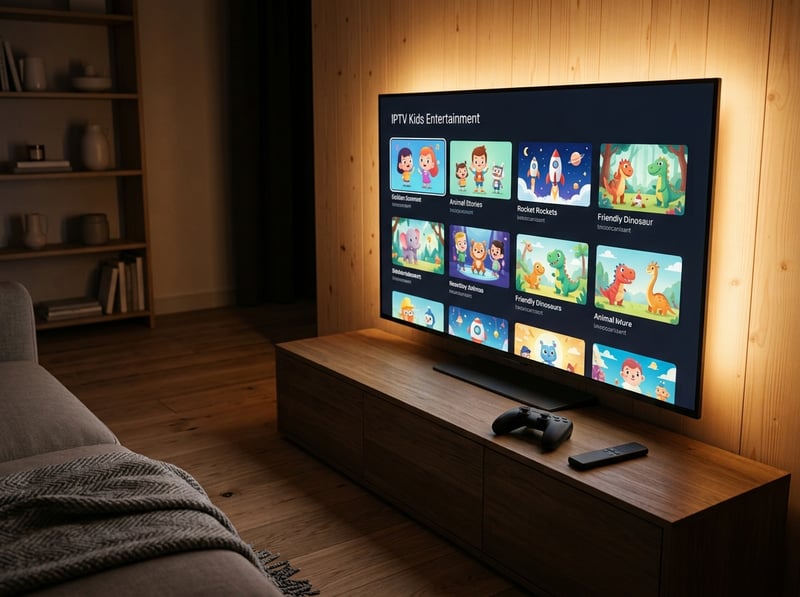
Picture this scenario: you've paid for an IPTV subscription, skipped the VPN, and the moment the big game kicks off on Saturday evening, your stream freezes every 30 seconds because your ISP is throttling your traffic right along with everyone else in your neighborhood streaming simultaneously. Or you paste your M3U URL with one extra space at the end and spend an hour wondering why TiviMate shows zero channels, only to realize the error was a single keystroke. These are the exact situations that turn a great idea into a frustrating experience.
Best VPNs to Stop ISP Throttling for IPTV
ISP throttling is one of the most common causes of IPTV buffering, and a quality VPN is the single fastest fix available.
- ExpressVPN: Consistently the fastest VPN for streaming with dedicated servers optimized for video traffic. Available directly on Firestick from the Amazon App Store. Lightway protocol delivers exceptional speeds.
- NordVPN: Excellent speeds, a massive server network, and strong privacy policies. The NordLynx protocol makes it ideal for 4K IPTV streaming without noticeable speed drops.
- Surfshark: Best value option, allowing unlimited simultaneous connections on a single subscription. Perfect if you're streaming on multiple devices in one household.
- IPVanish: Popular in the IPTV community specifically for Firestick users. Allows full router-level installation so every device on your network is protected automatically.
Always connect to a VPN server geographically close to your physical location for the best balance of speed and privacy. Avoid servers on the other side of the world unless you specifically need to geo-spoof your location for content access.
TiviMate vs IPTV Smarters Pro: Which App Should You Use?
Choosing the right IPTV player makes a massive difference in your daily experience.
- TiviMate: Widely regarded as the gold standard for Android-based IPTV players. Its interface closely mirrors a traditional cable TV guide, recordings work reliably, and it handles large M3U playlists (10,000+ channels) without slowing down. The premium version costs around $5/year and is absolutely worth it.
- IPTV Smarters Pro: Free and supports both M3U and Xtream Codes login. It's a solid choice for beginners who want to test their subscription before committing to TiviMate Premium. The interface is slightly more basic but functional across all devices.
- GSE Smart IPTV: Works well for users who need cross-platform support between iOS, Android, and Smart TVs simultaneously. Its EPG handling is strong and it supports external media players for improved codec compatibility.
- Kodi with PVR IPTV Simple Client: The most customizable option but requires the steepest learning curve. Recommended for advanced users who want total control over their streaming setup.
For most people just learning how to get IPTV set up properly, start with IPTV Smarters Pro to test your subscription, then migrate to TiviMate Premium once you're satisfied with your provider.
Network Requirements for Buffer-Free IPTV Streaming
- Minimum speed for HD streaming: 10 Mbps per simultaneous stream. If two people are watching in different rooms, you need at least 20 Mbps dedicated to IPTV.
- Recommended speed for 4K streaming: 25-35 Mbps per stream. For whole-home 4K streaming, a 100 Mbps connection is the practical minimum.
- Wired over wireless always wins: A direct Ethernet connection to your Firestick or Android TV box via an Ethernet adapter eliminates the vast majority of buffering issues caused by Wi-Fi interference and signal drops.
- Router placement matters: If you must use Wi-Fi, position your router in the same room or directly adjacent to your streaming device. Walls and floors significantly degrade signal strength.
- DNS settings: Switching from your ISP's default DNS to Google (8.8.8.8 / 8.8.4.4) or Cloudflare (1.1.1.1) can improve stream loading times noticeably.
Common Setup Mistakes and How to Fix Them
- Playlist won't load: Double-check your M3U URL for extra spaces, missing characters, or incorrect capitalization. Log into your provider's panel and copy the URL fresh. Also confirm your subscription is active and hasn't expired.
- Channels load but immediately buffer: Run a speed test at fast.com. If your speed is fine, connect a VPN and test again, ISP throttling is likely the culprit. If speed is actually low, restart your router and test with a wired connection.
- EPG shows no data: Confirm your provider has given you an EPG URL separate from your M3U URL. In TiviMate, delete and re-add the EPG source, then force a manual refresh. Some providers update EPG data slowly, wait 30 minutes and refresh again.
- App crashes on startup: Clear TiviMate's cache via Firestick Settings, then Applications, then Manage Installed Applications, then TiviMate, then Clear Cache. Restart the Firestick and relaunch.
- VOD content won't play: Some IPTV providers throttle VOD servers separately from live channels. Try switching the player to an external player option within TiviMate settings. MX Player handles VOD playback issues better than most built-in players.

Now that you know exactly how to get IPTV running from scratch, from choosing a provider and installing TiviMate, to locking down your connection with a VPN and fine-tuning your network, you have everything you need to ditch the cable bill for good. Take it one step at a time, follow the guide above, and check out our full channel list and pricing plans to find the perfect IPTV subscription for your household tonight.
Frequently Asked Questions
Ready to get started?
Try our service risk-free with a 24-hour free trial.
Related Articles
How to Cut the Cord Complete Guide to Replacing Cable TV in 2026
Cable bills averaging $150 per month in 2026 are driving millions of households to cut the cord permanently. This guide walks you through the entire process from auditing what you actually watch to choosing the right streaming services and equipment to replacing your cable subscription without losing a single channel you care about. Real numbers and real alternatives from someone who cut cable three years ago and never looked back.
How to Set Up IPTV: A Comprehensive 2026 Guide
Learn how to set up IPTV effortlessly with our guide.
Is IPTV Legal? Unpacking the Myths and Facts You Need to Know
Explore the legality of IPTV and its implications for users.