
How to Use UHF IPTV: The Complete Guide for 2026

You signed up for UHF IPTV, you've got your login credentials sitting in your inbox, and now you're staring at your Firestick or Smart TV wondering what on earth to do next. It happens to almost every new subscriber. The good news? Getting UHF IPTV up and running is genuinely straightforward once someone walks you through it properly, and that's exactly what this guide does, step by step, with zero assumptions about your technical background.
Solving the setup problem correctly from day one matters enormously because a misconfigured app or wrong stream URL will give you a frustrating experience that has nothing to do with the actual quality of the UHF IPTV service. Most people who complain about buffering or broken channels are simply running the wrong setup, so fix the foundation and everything else falls into place.
Core Concepts & Need-To-Know Info
- M3U Playlist URL: A link ending in .m3u or .m3u8 that contains all your UHF IPTV channel and VOD data. This is the core file your player app needs to function
- Xtream Codes API: An alternative login method using a Server URL, Username, and Password. Many IPTV apps support both M3U and Xtream Codes formats
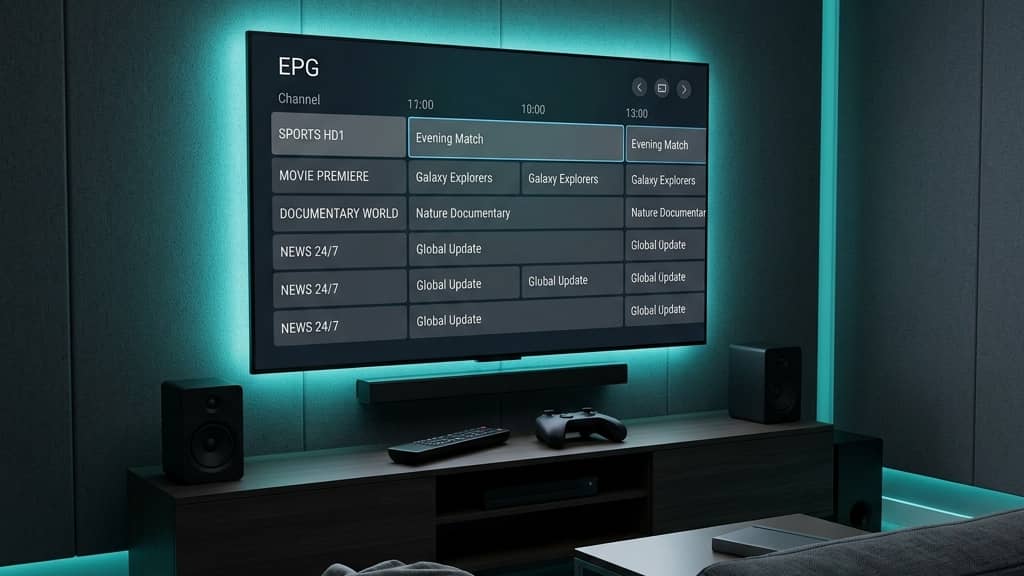
- EPG (Electronic Program Guide): The on-screen TV guide showing what's currently airing and what's coming up next
- VOD (Video On Demand): The movies and TV series library that comes with your UHF IPTV subscription, separate from live channels
- IPTV Player App: Third-party apps like TiviMate, IPTV Smarters Pro, or GSE Smart IPTV that actually read your playlist and display channels
- ISP Throttling: When your internet service provider intentionally slows down streaming traffic. This is the number one cause of buffering even with fast internet speeds
- VPN: A Virtual Private Network that encrypts your traffic and bypasses ISP throttling. Strongly recommended for UHF IPTV users
- Buffer Size / Cache Settings: In-app settings that pre-load stream data to prevent mid-stream interruptions
Step-by-Step Guide: How To Use UHF IPTV on Any Device
- Step 1: Get Your UHF IPTV Credentials:
- After subscribing to UHF IPTV, check your email for your login details. You should receive either an M3U URL or an Xtream Codes login (Server URL, Username, and Password). Save these somewhere accessible, as you'll need to enter them into your chosen app. If you haven't received them within a few minutes, check your spam folder or contact your provider directly.
- Step 2: Choose and Install Your IPTV Player App:
- You need a compatible app to load UHF IPTV. The top choices are TiviMate (best for Firestick and Android TV), IPTV Smarters Pro (great for beginners and Smart TVs), and GSE Smart IPTV (excellent cross-platform option). On a Firestick, go to the Search icon on the home screen, type Downloader, install it, then use the URL code from the TiviMate or Smarters website to sideload the APK. On Android TV or a Google TV device, simply open the Play Store and download your preferred app directly.
- Step 3: Open the App and Select Add Playlist or Add Account:
- Launch your chosen player. In TiviMate, tap the three-line menu, select Add Playlist, and choose between M3U Playlist or Xtream Codes. In IPTV Smarters, tap Add User then select Login with Xtream Codes API or Load Your Playlist / File / URL. Select whichever format matches the credentials your UHF IPTV provider sent you.
- Step 4: Enter Your UHF IPTV Login Details:
- If using M3U, paste your full M3U playlist URL exactly as provided since one wrong character will break the entire playlist. If using Xtream Codes, enter the Server URL, your Username, and your Password in the designated fields. Double-check for spaces at the beginning or end of each field, as these are invisible errors that cause authentication failed messages.
- Step 5: Let the Playlist Load and Organize:
- After entering your credentials, tap Add or Connect. The app will begin importing your UHF IPTV channel list and VOD library. Depending on your internet speed and the size of the playlist, this may take 30 seconds to a few minutes. Once loaded, you'll see categories like Live TV, Movies, and Series. In TiviMate, you can create a Favorites list, and doing this immediately for channels you watch regularly will speed up your daily navigation.
- Step 6: Add Your EPG (TV Guide):
- For a proper TV guide, you need to link an EPG source. Many UHF IPTV providers include an EPG URL with your credentials. In TiviMate, go to Settings > EPG > Add EPG Source and paste the URL. In Smarters, the EPG is often loaded automatically from the playlist. Allow up to 24 hours for full EPG data to populate, though most channels will show guide info within minutes.
- Step 7: Test a Live Channel and Adjust Buffer Settings:
- Navigate to a live channel and play it. If it loads smoothly, your setup is working. If you notice stuttering, go into the app's player settings and increase the buffer size. In TiviMate, go to Settings > Player > Video buffer and increase it to 10 to 15 seconds. In Smarters, access the player settings icon during playback and adjust the buffer. This single tweak resolves the majority of minor buffering complaints.
- Step 8: Set Up on Additional Devices:
- Repeat steps 2 through 7 on any other device you want to use, such as a Smart TV, Android phone, tablet, or MAG box. Your UHF IPTV subscription typically supports multiple simultaneous connections, so check your plan details and set up each device using the same credentials.

A real-world scenario worth knowing about: a user in the UK was experiencing constant buffering during Premier League matches despite having a 200 Mbps connection. The problem wasn't their speed but their ISP detecting and throttling IPTV traffic during peak hours. Installing a reputable paid VPN like ExpressVPN resolved it entirely within minutes, and this exact scenario plays out thousands of times every day.
Best VPNs to Stop ISP Throttling With UHF IPTV
ISP throttling is the silent killer of IPTV streams and it's far more common than most people realize. Your ISP can identify streaming traffic patterns and deliberately reduce your bandwidth during peak hours, causing constant buffering even on a fast connection. ExpressVPN is the gold standard for IPTV with fast servers in 90+ countries, a dedicated Fire TV app, and consistent speeds that handle 4K streams without issue. NordVPN offers excellent server variety and a SmartPlay feature that works well for live TV streams across multiple devices. Surfshark is the budget-friendly choice that still delivers solid performance and allows unlimited simultaneous device connections, which is perfect if you're running UHF IPTV on a Firestick, phone, and Smart TV at the same time. Always pick a server geographically close to you for the lowest latency, and enable the VPN before opening your IPTV app since some ISPs detect and flag the traffic within seconds of stream initiation.
Recommended Apps: TiviMate vs IPTV Smarters Pro
TiviMate is the premium option with a clean interface that handles massive playlists without slowing down, and the EPG integration is the best in the business. The paid version unlocks multiple playlist support, recording, and catch-up features, and it's the app of choice for Firestick and Android TV boxes. IPTV Smarters Pro is more beginner-friendly with a guided setup process ideal for people who've never used an IPTV player before, and it's available on more platforms including iOS which TiviMate currently doesn't support. GSE Smart IPTV is worth considering if you want a single app that works identically across Fire TV, Apple TV, iOS, and Android, making it great for households with mixed devices. For Samsung and LG Smart TVs, GSE Smart IPTV or Smart IPTV are typically your best options since TiviMate isn't available on those platforms directly.
Network Requirements for Smooth UHF IPTV Streaming
Your internet connection quality determines your entire UHF IPTV experience. HD (1080p) live channels require a minimum of 10 Mbps per stream, though 25 Mbps is recommended for stability. 4K VOD streams need 25 to 50 Mbps minimum with a stable wired or strong 5GHz Wi-Fi connection. For multiple simultaneous streams, multiply your per-stream requirement by the number of concurrent users. Wired Ethernet is always better than Wi-Fi for IPTV, and if your Firestick or TV supports it via an Ethernet adapter you should use it to eliminate a huge source of stream instability. If you must use Wi-Fi, ensure your streaming device is within clear line-of-sight of your router and connected to the 5GHz band rather than the slower 2.4GHz band. Run a speed test at fast.com before blaming your UHF IPTV service for any issues to confirm your actual download speed and ping time first.
Common Setup Mistakes & How to Fix Them
Even careful setup can go wrong, so here are the most frequent issues and their exact fixes. A Playlist could not be parsed error almost always means your M3U URL was entered incorrectly or has expired, so copy the URL fresh from your welcome email, delete the existing playlist in the app, and re-add it from scratch. Channels showing as offline or a black screen can often be resolved by switching the player within the app since most apps let you toggle between software and hardware decoders. If your EPG is not showing program info, go into the EPG settings in your app and force a manual refresh, and if it still fails ask your UHF IPTV provider for an updated EPG URL. App freezing on large playlists can be addressed in TiviMate by enabling the Load channels in background setting while also ensuring your device has sufficient free storage. If your login works on one device but not another, this is almost always a simultaneous connection limit issue, so check how many streams your UHF IPTV plan allows and ensure you're not exceeding that number.
Troubleshooting: Fixing Playlist and Stream Errors
When something goes wrong with your UHF IPTV stream, work through this diagnostic process before assuming the service is down. Restart your router and streaming device first since this fixes roughly 30% of issues instantly by clearing stale network connections and freeing up device memory. Check your UHF IPTV provider's status page or Telegram group as many providers announce server maintenance or outages in real time. Test your M3U URL directly in a browser by pasting it into a desktop browser, and if it downloads a file the URL is valid and the issue is with your app or device, but if it returns an error contact your provider for a refreshed URL. Clear your app cache on Firestick by going to Settings > Applications > Manage Installed Applications > your app > Clear Cache, and do this monthly as a maintenance habit. Switching from your ISP's default DNS to Google DNS (8.8.8.8) or Cloudflare (1.1.1.1) can also resolve playlist loading failures caused by DNS blocking.

Knowing how to use UHF IPTV properly is the difference between an experience that frustrates you into giving up and one that makes you wonder why you ever paid a cable bill. With the right app, correct credentials entered carefully, a VPN handling any ISP throttling, and a few tweaked settings, UHF IPTV delivers a genuinely premium streaming experience across every device in your home. Get the setup right once and you'll rarely need to touch it again, so check out our full channel list and pricing plans to find the subscription that fits your needs perfectly.
Frequently Asked Questions
Ready to get started?
Try our service risk-free with a 24-hour free trial.
Related Articles
Most Affordable IPTV Providers in the UK (2026 Ranking)
Compare the best budget-friendly IPTV services in the UK to slash expensive cable bills.

Discover the Best IPTV Services for Watching Ion Plus in 2026
Find the best IPTV services that stream Ion Plus effortlessly.
How to Download IPTV: The Complete Guide for 2026
Master the art of downloading IPTV for optimal streaming.