
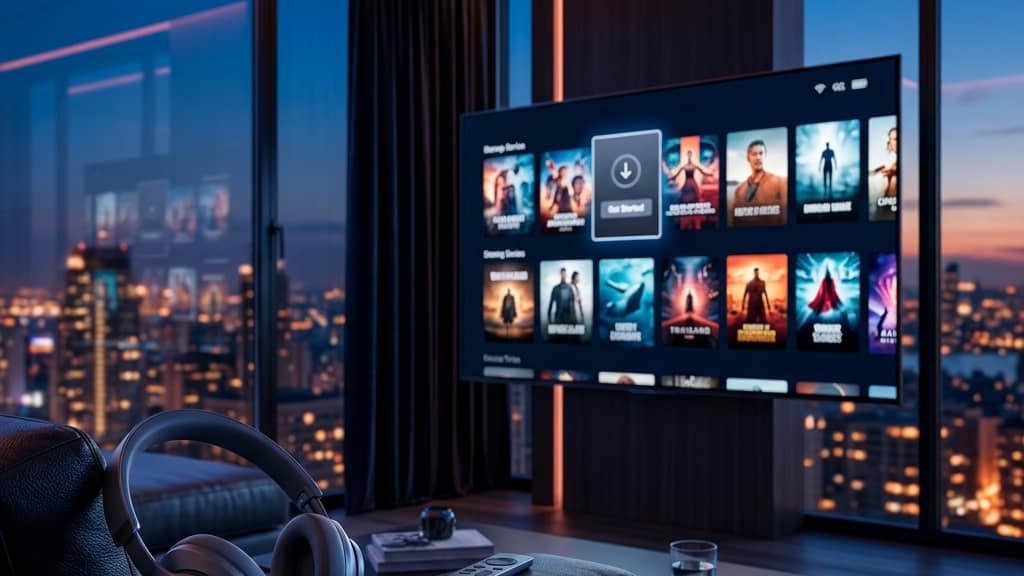
How to Download IPTV: The Complete Guide for 2026

Tired of paying a fortune for cable channels you never watch? Millions of people have already made the switch to IPTV, but the setup process stops most newcomers dead in their tracks. Whether you're staring at a blank Firestick screen wondering where to even begin, or you've downloaded an app only to find it won't accept your M3U playlist, this guide walks you through exactly how to download IPTV and get it running perfectly — no tech degree required.
Knowing how to download IPTV correctly is the difference between a seamless streaming experience and hours of frustration dealing with buffering, broken playlists, and apps that crash. Getting the setup right the first time means you'll spend your evenings watching premium content instead of troubleshooting settings.
Core Concepts & Need-To-Know Info
- IPTV (Internet Protocol Television): Delivers TV content over the internet rather than through a satellite dish or cable line
- M3U Playlist / M3U URL: A text-based file containing links to all your IPTV channels — your provider will give you this link after subscribing
- Xtream Codes API: An alternative login method using a server URL, username, and password instead of an M3U link — more stable and widely supported
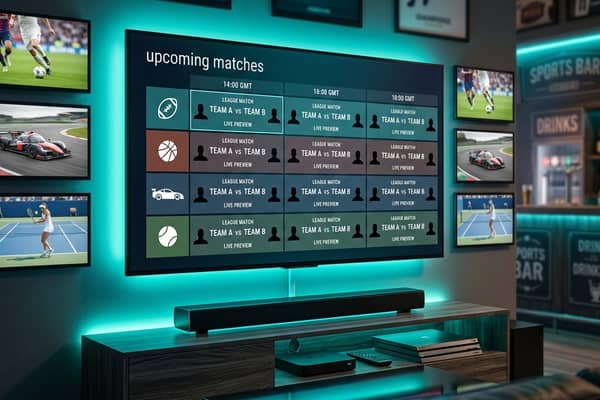
- EPG (Electronic Program Guide): The on-screen TV guide that shows what's currently playing and what's coming up next
- VOD (Video on Demand): The on-demand movie and TV show library included with most IPTV subscriptions
- Internet Speed Requirements: A minimum of 25 Mbps is recommended for HD streaming; 4K content requires at least 50 Mbps with a stable, low-latency connection
- Sideloading: The process of installing apps on a Firestick or Android device from outside the official app store — essential for IPTV apps not listed on Amazon or Google Play
- ISP Throttling: Some internet service providers intentionally slow down streaming traffic, which is a primary cause of IPTV buffering even on fast connections
Step-by-Step Guide
- Step 1: Choose Your IPTV App:
- Before downloading anything, decide which IPTV player you'll use. TiviMate is the gold standard for Firestick and Android TV — it's polished, fast, and handles large playlists with ease. IPTV Smarters Pro and GSE Smart IPTV are solid alternatives. For Smart TVs (Samsung/LG), look for apps directly in your TV's app store by searching "IPTV Smarters" or "SS IPTV".
- Step 2: Enable Downloader on Firestick (Firestick Users Only):
- Navigate to your Firestick home screen and go to Settings, My Fire TV, Developer Options. Toggle "Apps from Unknown Sources" to ON. This allows sideloading of apps not found in the Amazon Appstore. If you don't see Developer Options, tap on "About" first and click your Firestick device name seven times to unlock developer mode.
- Step 3: Install the Downloader App:
- From the Firestick home screen, use the search bar to find and install the "Downloader" app by AFTVnews — it's free and available in the Amazon Appstore. Android TV users can use Google Chrome or a file manager app to download APK files directly. This is your gateway to installing any IPTV player.
- Step 4: Download Your IPTV Player APK:
- Open the Downloader app and type the APK download URL into the URL bar. For TiviMate, go to tivimate.com and find the current APK link. For IPTV Smarters Pro, search for the official APK from Xtream-Codes or your IPTV provider's setup page. Hit "Go" and the file will download directly to your device. Once downloaded, tap "Install" when prompted.
- Step 5: Launch the App and Enter Your Playlist Details:
- Open your newly installed IPTV app. You'll be asked to add a playlist. If your provider gave you an M3U URL, paste it into the "M3U URL" field — it will look something like http://yourprovider.com:8080/get.php?username=XXX&password=XXX&type=m3u_plus. If they gave you Xtream Codes login details, select "Xtream Codes API" and enter your server URL, username, and password separately. This method is generally more reliable.
- Step 6: Add Your EPG Source:
- Inside your app settings, locate the EPG or "Electronic Program Guide" option. Paste in the EPG URL provided by your IPTV service (often ends in xmltv.xml or similar). Set the EPG refresh interval to every 24 hours. This populates your channel guide with program names and schedules so you can browse content like a traditional TV guide.
- Step 7: Organize Your Channels and Test Playback:
- Once the playlist has loaded, browse your channel categories. Test a live channel, a sports stream, and a VOD title to confirm everything is working. If channels load within 3-5 seconds and play smoothly, your setup is complete. Bookmark your favorite channels and create custom groups inside the app to make navigation faster going forward.

Imagine settling in to watch the Champions League final, only for your stream to freeze every 30 seconds because your ISP identified your traffic as video streaming and throttled your bandwidth. Or picture spending 20 minutes entering a 200-character M3U URL by hand, only to get a "playlist error" because one character was wrong. These aren't rare edge cases — they happen to thousands of IPTV users every single day, and every one of them is completely avoidable with proper preparation.
Best VPNs to Stop ISP Throttling
ISP throttling is one of the biggest hidden enemies of smooth IPTV playback. A quality VPN encrypts your traffic so your ISP can't identify it as streaming data, effectively bypassing speed restrictions.
- ExpressVPN — The fastest option for IPTV streaming with dedicated servers optimized for video; native Firestick app makes installation effortless
- NordVPN — Excellent server network with a NordLynx protocol that delivers near-native speeds; great for 4K streaming without noticeable lag
- Surfshark — Best value option with unlimited simultaneous connections — ideal if you're streaming IPTV on multiple devices in your home
- IPVanish — Particularly popular in the IPTV community with a direct Firestick app and solid speeds for live sports streams
Always connect your VPN before launching your IPTV app, and choose a server geographically close to your physical location for the best speeds. Run a speed test before and after connecting to confirm you're not losing more than 10-15% of your baseline speed.
Common Setup Mistakes & How to Fix Them
- Problem: "No streams available" error — This almost always means your M3U URL or Xtream Codes credentials are entered incorrectly. Copy the URL again from your provider email, delete the current playlist in your app, and re-add it from scratch.
- Problem: Channels load but freeze after 30 seconds — This points to buffering caused by network speed or ISP throttling. Connect a VPN, switch to a wired ethernet connection if possible (using a Firestick Ethernet Adapter), and lower the stream quality setting inside your IPTV app.
- Problem: EPG shows no program information — Your EPG URL may be wrong or the refresh hasn't triggered yet. Go into app settings, manually force an EPG update, and wait up to 10 minutes for it to fully populate.
- Problem: TiviMate won't install on Firestick — TiviMate requires the companion "TiviMate Companion" app to be sideloaded first. Search for the TiviMate setup guide on the official TiviMate website for the correct two-step installation process.
Recommended Apps: TiviMate vs IPTV Smarters
Choosing the right player is just as important as knowing how to download IPTV in the first place. Here's how the top two compare:
- TiviMate: Best-in-class interface, smooth scrolling through large channel lists, excellent catch-up TV support, and a recording feature. The free version is functional, but the Premium subscription (around $5/year) unlocks multiple playlists, the video player customization, and parental controls. Highly recommended for Firestick and Android TV users.
- IPTV Smarters Pro: More beginner-friendly with a simpler layout. Works across more platforms including iOS and Smart TVs. Natively supports both M3U and Xtream Codes logins. Free to use but slightly less polished than TiviMate.
- GSE Smart IPTV: Great for users who want a high degree of manual control over their player settings, including custom headers and user-agent strings — useful if your provider requires specific settings for authentication.
- Perfect Player: A lightweight option that works well on lower-powered devices; good fallback if your Firestick is an older generation with limited RAM.
Network Requirements for 4K Streaming
- Minimum 25 Mbps for stable HD (1080p) streaming on a single device
- 50 Mbps or faster for 4K UHD content — anything slower will trigger automatic quality downscaling in your player
- Wired Ethernet connection dramatically outperforms Wi-Fi for IPTV — invest in a Firestick Ethernet Adapter or plug your Android TV box directly into your router
- Router placement matters — if you must use Wi-Fi, ensure your streaming device is within clear line-of-sight to your router, or use a Wi-Fi 6 router for significantly better throughput
- QoS settings on your router — enable Quality of Service and prioritize your streaming device's MAC address to ensure it gets bandwidth priority over other household devices during peak hours
Troubleshooting: Fixing Playlist Errors
- Error: "Invalid M3U format" — Your provider may have given you a link to an HTML page rather than the actual M3U file. Contact your provider and specifically request the raw M3U playlist URL that ends in &type=m3u_plus
- Error: Playlist loads but channels are missing — Your subscription tier may not include all channel categories, or the playlist loaded before fully downloading. Pull to refresh the playlist or delete and re-add it to force a full re-download
- Error: Authentication failed (Xtream Codes) — Double-check that your server URL includes the correct port number (e.g., :8080 or :25461). A missing or incorrect port is the most common cause of Xtream Codes authentication failures
- Channels keep dropping mid-stream — This is typically a server-side issue with your IPTV provider during peak hours. Try switching to a backup server URL if your provider offers one, or contact their support for a server that has lower current load
Now that you know exactly how to download IPTV and configure it correctly on any device, you're fully equipped to ditch the cable box and build a streaming setup that actually works. The difference between a frustrating experience and a flawless one comes down entirely to the details covered here — the right app, the right network setup, and a VPN running quietly in the background — so explore our channel list and pricing plans today to get started with a free trial.
Frequently Asked Questions
Ready to get started?
Try our service risk-free with a 24-hour free trial.
Related Articles
Understanding EPG on IPTV: Everything You Need to Know
Learn about EPG on IPTV and how it improves your viewing experience.
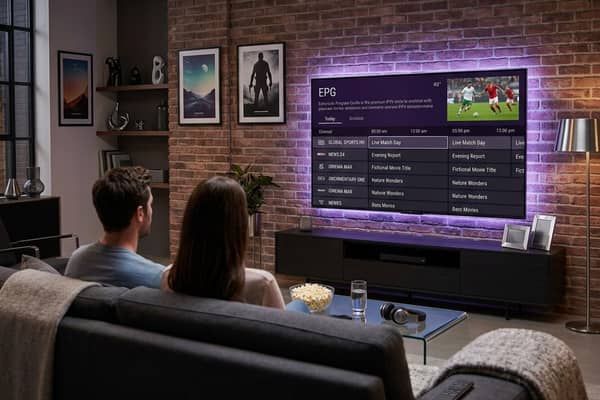
Cheapest IPTV Subscriptions in 2026: Budget Services That Actually Work
Honest 2026 guide comparing cheap IPTV services, what trade-offs to expect, and how to get stable 4K streaming under $12 a month.
Understanding EPG IPTV: A Comprehensive Guide for 2026
Learn about EPG IPTV and its significance in streaming.