Understanding EPG on IPTV: Everything You Need to Know
You've got your IPTV subscription running, channels are loading, and everything seems fine — until you realize you have absolutely no idea what's playing right now, what comes on next, or when your favorite show starts. Scrolling blindly through hundreds of channels trying to guess the schedule is frustrating and completely unnecessary. That's exactly where EPG on IPTV comes in, and once you understand how it works and get it set up correctly, your entire streaming experience transforms from chaotic to effortlessly organized.
Getting EPG working correctly is one of the most impactful upgrades you can make to your IPTV setup. Without it, you're essentially flying blind through hundreds of channels — with it, you have a fully functional, professional-grade TV guide at your fingertips that makes the whole experience feel premium and polished.
Core Concepts & Need-To-Know Info
- EPG stands for Electronic Program Guide: it's a data feed that tells your IPTV app what program is currently airing, what aired before it, and what's coming up next on every channel
- EPG data comes in XML format: specifically a file format called XMLTV, which your IPTV app downloads and matches against your channel list
- Your IPTV provider usually supplies an EPG URL: this is a separate link from your M3U playlist URL or Xtream Codes credentials, and you need both for a complete setup
- EPG URLs typically end in .xml or .gz: the .gz version is a compressed file that loads faster and is easier on your network
- Channel matching is everything: your app matches EPG data to channels using unique IDs; if the IDs don't align, some channels will show no guide data even though the EPG is technically working
- Refresh intervals matter: EPG data needs to update regularly (usually every 12 to 24 hours) to stay accurate; stale data shows wrong programming information
- Third-party EPG sources exist: if your IPTV provider's EPG is weak or missing, services like EPG.Best, i.mjh.nz, or Rytec provide high-quality XMLTV feeds for specific regions
Step-by-Step Guide
- Step 1: Get Your EPG URL From Your IPTV Provider:
- Log into your IPTV provider's customer panel or check your welcome email. Look for a field labeled EPG URL, XMLTV URL, or Program Guide Link. It will look something like: http://yourprovider.com/xmltv.php?username=XXXX&password=XXXX. Copy this link exactly — even one wrong character will cause the entire guide to fail. If you use Xtream Codes login instead of M3U, your app may be able to pull the EPG automatically without a separate URL.
- Step 2: Open Your IPTV App (TiviMate, Smarters, or IPTV Smarters Pro):
- Launch your preferred IPTV player. TiviMate is the gold standard for EPG support on Firestick and Android TV, so this guide references it primarily. From the TiviMate home screen, tap the hamburger menu (three lines, top left) and go to Settings.
- Step 3: Navigate to the Playlist Settings:
- Inside Settings, select Playlists. You'll see your existing M3U playlist or Xtream Codes account listed here. Tap on it to open the individual playlist settings — this is where EPG gets linked to your specific channel source.
- Step 4: Enter the EPG URL:
- Scroll down within the playlist settings until you see the EPG section or a field labeled EPG URL / XMLTV URL. Tap the field and carefully paste or type in the EPG URL you copied from your provider. If you're on a Firestick, use a Bluetooth keyboard or the voice input button to avoid typos. Once entered, save your changes.
- Step 5: Force an EPG Refresh:
- Back in the TiviMate settings, find the Update EPG or Refresh EPG option and tap it manually. The app will download the XMLTV file and attempt to match guide data to your channels. Depending on your internet speed and how large the EPG file is, this can take anywhere from 30 seconds to several minutes. A progress bar or loading spinner will appear — let it finish completely before checking results.
- Step 6: Verify EPG Is Working on Your Channels:
- Return to your main channel list. Highlight any major live TV channel (a news network or sports channel is easiest to verify). If EPG is working, you'll see the current program title and time displayed beneath or beside the channel name. Press the guide button (or navigate to the EPG/Guide section in TiviMate) to pull up the full 7-day grid. If channels show data, you're good. If some are blank, proceed to the troubleshooting section below.
- Step 7: Set Your EPG Auto-Refresh Schedule:
- In TiviMate Settings → EPG, set the automatic refresh interval to every 12 or 24 hours. This ensures your guide always displays accurate, up-to-date programming without you having to trigger it manually each day.
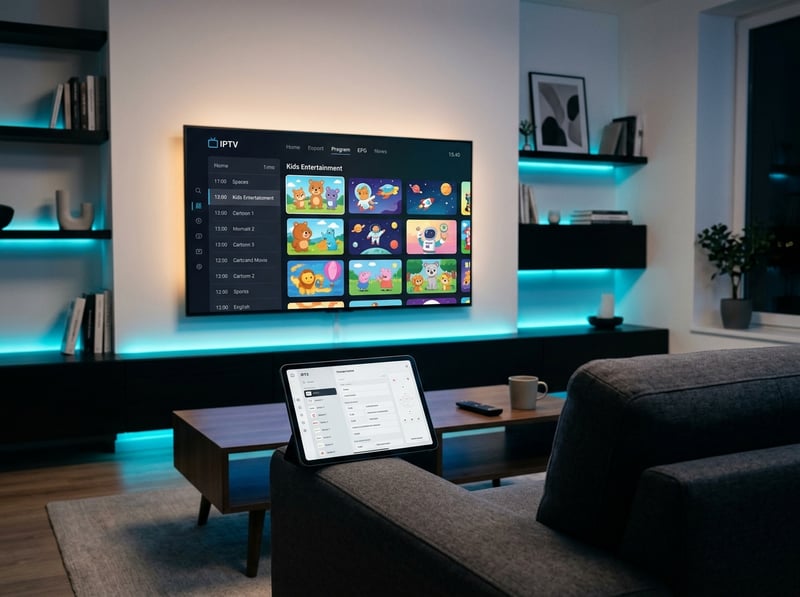
Picture this: you set up EPG on your Firestick, everything looks great, and then two days later the guide is completely blank. Nine times out of ten, either your provider changed the EPG URL without notifying customers, or your ISP started throttling the large file download after detecting the traffic pattern. Running a reliable VPN like ExpressVPN or NordVPN solves the throttling problem immediately and keeps your EPG loading consistently. Getting into the habit of checking your guide every few days and knowing where to find your provider's latest EPG URL will save you enormous headaches down the line.
Best VPNs to Protect Your IPTV and EPG Traffic
ISP throttling doesn't just affect your video streams — it can actively block or slow down the EPG XML file downloads, especially since providers flag large, repetitive file downloads from the same source.
- ExpressVPN: consistently the fastest VPN for Firestick with a dedicated Fire TV app; MediaStreamer DNS feature also helps with smart TV EPG loading
- NordVPN: excellent server count means you can always find a low-latency server close to your location; lightweight enough to run alongside TiviMate without causing buffering
- Surfshark: best value option with unlimited simultaneous connections, great for households running IPTV on multiple devices (Smart TV, Firestick, Android box all at once)
- IPVanish: a longtime favorite in the IPTV community because it allows sideloading on Firestick without leaving the Amazon ecosystem and has solid speeds for VOD content
- Always connect your VPN before opening your IPTV app and triggering an EPG refresh — connecting after the app is open may mean the EPG request already went through unprotected
TiviMate vs IPTV Smarters: Which Handles EPG Better?
Choosing the right app for managing EPG on IPTV is almost as important as getting the EPG URL itself.
- TiviMate (Premium) is the undisputed winner for EPG functionality — its guide grid is smooth, supports multi-source EPG, handles large XMLTV files without crashing, and lets you filter the guide by category or channel group
- IPTV Smarters Pro handles EPG adequately for casual users and works well when your Xtream Codes provider pushes EPG automatically through the server, but its guide interface is clunkier and slower to navigate on a Firestick remote
- GSE Smart IPTV is a solid middle ground on iOS and Android devices — it supports external XMLTV URLs and renders the guide cleanly, though it lacks TiviMate's recording integration
- If you're on a budget, the free version of TiviMate still displays EPG data — you just won't get the full multi-panel guide or recording features until you upgrade to Premium (a one-time purchase worth every penny)
- For Smart TVs running Tizen (Samsung) or WebOS (LG), the built-in IPTV apps are limited — consider using an Nvidia Shield or Android TV stick paired with TiviMate for the best EPG experience
Troubleshooting: Fixing EPG Not Showing on IPTV
When your guide is blank or only partially populated, work through these fixes in order:
- Check the EPG URL is still valid: paste it directly into a browser on your phone; if it downloads an XML or .gz file, it's working; if you get a 404 error, contact your provider immediately for a new link
- Clear TiviMate's cache: go to your Android/Firestick Settings → Apps → TiviMate → Clear Cache, then relaunch and force an EPG refresh; corrupted cache is the single most common cause of EPG failures that have nothing to do with the URL itself
- Check for channel ID mismatches: in TiviMate, go to Settings → Playlists → EPG → Channel Matching; here you can manually assign EPG data to channels that didn't auto-match, which solves the some channels have guide, others don't problem
- Try a different EPG source: if your provider's EPG is weak, supplement it with a regional XMLTV feed; for UK users, i.mjh.nz covers most Freeview channels; for US users, Schedules Direct offers premium XMLTV data
- Reduce your EPG timeframe: some apps let you set how many days of EPG to download; if you're having load failures, drop it from 7 days to 3 days to reduce the file size your connection needs to handle
Network Requirements for Smooth EPG and 4K Streaming
EPG data is relatively lightweight, but if your network is already strained, it can contribute to overall IPTV performance issues.
- Minimum 25 Mbps for stable HD IPTV streaming; EPG refresh adds minimal overhead but a congested network will slow XML downloads to a crawl
- 50+ Mbps recommended for 4K VOD: high-bitrate 4K streams combined with EPG background refreshes require headroom; if your router is constantly at capacity, the EPG update will fail silently
- Use wired Ethernet wherever possible: Wi-Fi introduces packet loss and inconsistent speeds that cause both buffering and EPG timeout errors; a simple Ethernet adapter for your Firestick 4K costs under $15 and is a game-changer
- Prioritize your streaming device in your router's QoS settings: Quality of Service settings let you guarantee bandwidth to your Firestick or Android TV box so EPG downloads and video streams always get priority over other household devices
- Restart your router weekly: this clears DNS caches and refreshes your IP address, which can resolve mysterious EPG loading failures that appear without any obvious cause
Understanding what EPG on IPTV is and getting it working correctly is the difference between a frustrating channel-surfing nightmare and a smooth, professional streaming setup that rivals any cable package. Once your Electronic Program Guide is properly linked to your M3U playlist, refreshing on schedule, and displaying accurate data across all your channels, you'll wonder how you ever streamed without it — check out our full channel list and pricing plans to complete your setup today.
Frequently Asked Questions
Ready to get started?
Try our service risk-free with a 24-hour free trial.
Related Articles
IPTV Free Trial: How to Test Premium Streaming Before Buying in 2026
Discover how to get a risk-free 24-hour IPTV free trial, test server stability during peak hours, and avoid common trial traps.
Best Free TV Streaming Apps for Live TV and On Demand 2026
Free TV streaming apps have exploded in 2026 with ad-supported platforms offering hundreds of live channels and thousands of on-demand movies without a subscription fee. This guide ranks the best free TV apps available on Firestick, Roku, Smart TV, and phones, explains what each one does well and where it falls short, and compares the free tier against low-cost IPTV for viewers who want more channels without the cable bill.
How to Install IPTV on Firestick: The Ultimate 2026 Guide
Step-by-step guide to install IPTV on Firestick.