
Step-by-Step Guide to Install IPTV Smarters Pro on Your TV

Tired of paying an arm and a leg for a cable package that still somehow doesn't carry the channels you actually want to watch? You're not alone. Millions of cord-cutters are making the switch to IPTV, and IPTV Smarters Pro has quickly become one of the most popular apps to do it with — but the setup process trips people up more than it should. Whether you're staring at a blank Firestick home screen wondering where to even start, or you've downloaded the app and hit a wall entering your M3U playlist details, this guide walks you through every single step with zero guesswork.
Getting this setup right the first time saves you hours of troubleshooting. A misconfigured M3U URL or wrong portal entry is the number one reason people think their IPTV service is broken when it's actually a simple fix during installation.
Core Concepts & Need-To-Know Info
- M3U Playlist URL: This is a web link ending in .m3u or .m3u8 that your IPTV provider sends you. It contains all your channel and VOD data. Guard it carefully; it's tied to your subscription.
- Xtream Codes API: An alternative login method where you enter a server URL, username, and password instead of a full M3U link. Most reputable IPTV providers support this.
- Portal/Stalker Portal: A third login type used by some providers. If your provider gave you a MAC address and portal URL, this is the option you'll pick.
- ISP Throttling: Your internet service provider can detect and slow down IPTV traffic. This is a major cause of buffering even when your internet speed test looks fine. A VPN fixes this.
- Firestick Sideloading: Amazon's Fire TV devices don't have IPTV Smarters Pro in the official app store in all regions. You may need to enable "Apps from Unknown Sources" and use the Downloader app.
- Minimum speed recommendation: 10 Mbps for HD streaming, 25 Mbps for 4K. Run a speed test before blaming the app.
Step-by-Step Guide: How to Install IPTV Smarters Pro on TV
- Step 1: Enable Apps from Unknown Sources (Firestick Only):
- On your Firestick remote, press the Home button and navigate to Settings, My Fire TV, Developer Options. Toggle Apps from Unknown Sources to ON. If your Fire TV asks for confirmation, select Turn On. This step is mandatory for sideloading any app not found in the Amazon App Store in your region.
- Step 2: Install the Downloader App:
- Go back to the Firestick Home screen and open the Search icon. Type "Downloader" and select the orange-icon Downloader app by AFTVnews. Click Download and wait for installation to complete. This app acts as a browser to pull APK files directly onto your device.
- Step 3: Download IPTV Smarters Pro APK:
- Open the Downloader app. In the URL bar, type the official IPTV Smarters Pro download link — go to iptvsmarters.com directly or use a trusted APK mirror. Hit Go and wait for the file to download. Once it lands on your device, click Install when prompted. After installation finishes, select Done (not Open — we'll launch it fresh in a moment).
- Step 4: For Android TV / Smart TV — Install via Google Play:
- On an Android TV or Google TV device (like NVIDIA Shield or Sony Bravia), open the Google Play Store, search for IPTV Smarters Pro, and hit Install. No sideloading needed. Samsung and LG Smart TV users should check their respective app stores — if it's unavailable, use the sideload method with a USB drive or Smart TV browser.
- Step 5: Launch IPTV Smarters Pro and Accept the Terms:
- Open the app for the first time. You'll see a welcome screen with a Terms of Service prompt. Read through it, then tap I Agree to continue. The app will bring you to the main login/add user screen.
- Step 6: Add Your IPTV Service — Choose Your Login Method:
- Tap Add New User. You'll see three options: Login with Xtream Codes API, Load Your Playlist or File/URL, and Load Your Playlist through Stalker Portal. Choose based on what your IPTV provider sent you. Most providers use Xtream Codes or M3U URL.
- Step 7A: Enter Xtream Codes Details:
- If using Xtream Codes, fill in your Full Name (just a label you pick), then enter the Server URL, Username, and Password exactly as your provider sent them — no extra spaces, no capital letters where there shouldn't be any. Hit Add User and the app will connect to the server and load your channel list.
- Step 7B: Enter Your M3U Playlist URL:
- If using an M3U link, select Load Your Playlist or File/URL. Enter a display name for the profile, then paste your M3U URL into the URL field. Double-check for typos — one wrong character breaks the entire playlist. Tap Add User to load it.
- Step 8: Browse Your Channel List and VOD Library:
- Once connected, IPTV Smarters Pro will display your Live TV, Series, and Movies tabs. Tap Live TV to see your channel categories. Select any channel to start streaming. If channels load but buffer immediately, jump to the troubleshooting section below before changing anything else.
Imagine this: it's the Champions League final, you've got friends over, everything is set up — then 20 minutes in, the stream starts freezing every 10 seconds while your speed test shows 80 Mbps. That's ISP throttling in action, and it's frustratingly common. The other nightmare scenario is a simple M3U URL typo that makes it look like your whole subscription is dead when it's actually one misplaced character.
Best VPNs to Stop ISP Throttling During IPTV Streaming
- ExpressVPN: Consistently the fastest option for IPTV. Its Lightway protocol handles high-bandwidth streams without noticeable speed loss. Works seamlessly on Firestick with a native app.
- NordVPN: Excellent server count with NordLynx protocol offering impressive speeds. The SmartPlay feature is specifically designed for streaming services and reduces buffering on IPTV streams noticeably.
- Surfshark: Best value for IPTV users who want unlimited simultaneous device connections. No-log policy and solid speeds make it a reliable budget choice.
- IPVanish: Popular in the Firestick/Kodi community specifically because it allows SOCKS5 proxy configuration, giving you extra flexibility with IPTV apps.
Common Setup Mistakes & How to Fix Them
- Failed to connect to server error: This almost always means the server URL is wrong or has an extra slash at the end. Remove any trailing "/" from your server address and try again. Also confirm your subscription is active with your provider.
- Channels load but show a black screen: This is often a player compatibility issue. Inside Smarters Pro, go to Settings, Player Selection and switch from the default player to ExoPlayer or VLC. One of those two typically resolves black screen issues immediately.
- App crashes when loading channel list: Usually caused by a massive M3U playlist with thousands of channels overwhelming the app. Ask your provider if they offer a filtered or smaller playlist version, or use Xtream Codes login instead which loads categories progressively.
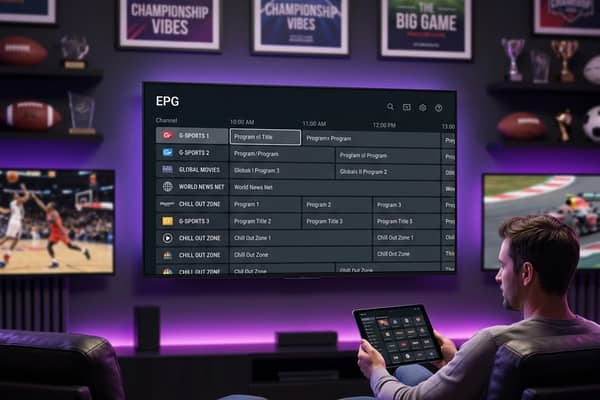
- EPG (Electronic Program Guide) not showing: You need to enter your EPG URL separately. Go to Settings inside the app and find the EPG/XMLTV URL field. Your provider should supply this alongside your M3U link.
TiviMate vs IPTV Smarters Pro: Which Should You Use?
- IPTV Smarters Pro: Free, more beginner-friendly, and works across more device types including Smart TVs. It's the right pick if you're just starting out or using a non-Android device.
- TiviMate: Has a superior interface, a much cleaner EPG layout, and better multi-screen management — but it requires a paid premium subscription (~$5/year) and only works on Android-based devices.
- For Firestick users on a budget: IPTV Smarters Pro is the clear winner. For Android TV box enthusiasts who want the best possible experience and don't mind paying a small annual fee, TiviMate pulls ahead.
- Both apps support M3U playlists and Xtream Codes API, so you can trial both with the same credentials and pick whichever interface you prefer.
Network Requirements for Smooth Streaming
- HD streams (1080p): Minimum 10 Mbps download speed, but 20 Mbps is comfortable if others are sharing the network.
- 4K Ultra HD streams: You need at least 25 Mbps dedicated to the IPTV device. Background devices eating bandwidth will cause constant buffering.
- Wired Ethernet beats Wi-Fi every time: If your Firestick or Android TV box supports Ethernet (via an adapter), use it. Wi-Fi signal drops and interference are silent killers of IPTV stability.
- Router placement matters: If you must use Wi-Fi, place your router within clear line-of-sight of your TV. Walls, especially concrete, kill signal strength dramatically.
- Reboot your router monthly: Routers accumulate connection tables and memory bloat over time. A simple restart clears this and often fixes mysterious streaming slowdowns.
Troubleshooting Playlist Errors in IPTV Smarters Pro
- Delete and re-add the playlist from scratch: Don't edit an existing broken playlist entry. Remove it, clear the app cache (Settings, Apps, IPTV Smarters Pro, Clear Cache), then add it fresh.
- Check your subscription expiry date: Many providers send an expiry date in your welcome email. An expired sub looks exactly like a broken connection inside the app.
- Test your M3U URL in a browser first: Copy your M3U URL and paste it into a web browser. If it starts downloading or displaying text, the URL is valid and the issue is app-side. If you get a 404 error, contact your provider immediately.
- Try a different DNS server: Navigate to your Firestick or router network settings and change your DNS to 1.1.1.1 (Cloudflare) or 8.8.8.8 (Google). Some ISPs intercept IPTV traffic at the DNS level, and switching DNS alone can restore broken streams.
Learning how to install IPTV Smarters Pro on TV is genuinely one of the best decisions you can make as a cord-cutter, and as you can see, the process is far more straightforward than most guides make it look. The key is getting the credentials from your provider right, choosing the correct login method, and layering in the right network and VPN setup from day one — do that, follow the troubleshooting steps if anything goes sideways, and you'll have a rock-solid IPTV setup delivering live sports, thousands of VOD titles, and crystal-clear HD channels for a fraction of what cable ever charged you. Ready to get started? Check out our channel list and pricing plans to find the perfect subscription for your needs.
Frequently Asked Questions
Ready to get started?
Try our service risk-free with a 24-hour free trial.
Related Articles
How Much Does IPTV Cost? Discover Pricing for 2026
Find out the costs of IPTV subscriptions and what affects pricing.
Internet Options for Rural Areas and How to Get Reliable Broadband Outside the City
A practical guide to finding reliable internet service in rural areas covering fixed wireless and satellite broadband and cellular home internet and DSL options for households outside the reach of cable and fiber networks.
IPTV on Roku Setup Guide Best Apps and How to Watch in 2026
Roku does not support sideloading like Firestick but you can still watch IPTV on it. This guide covers every working method in 2026 including dedicated Roku IPTV player apps from the Channel Store, M3U playlist players, screen mirroring from your phone, and the web browser workaround. We also explain when it makes more sense to pair your Roku with a secondary device instead.