
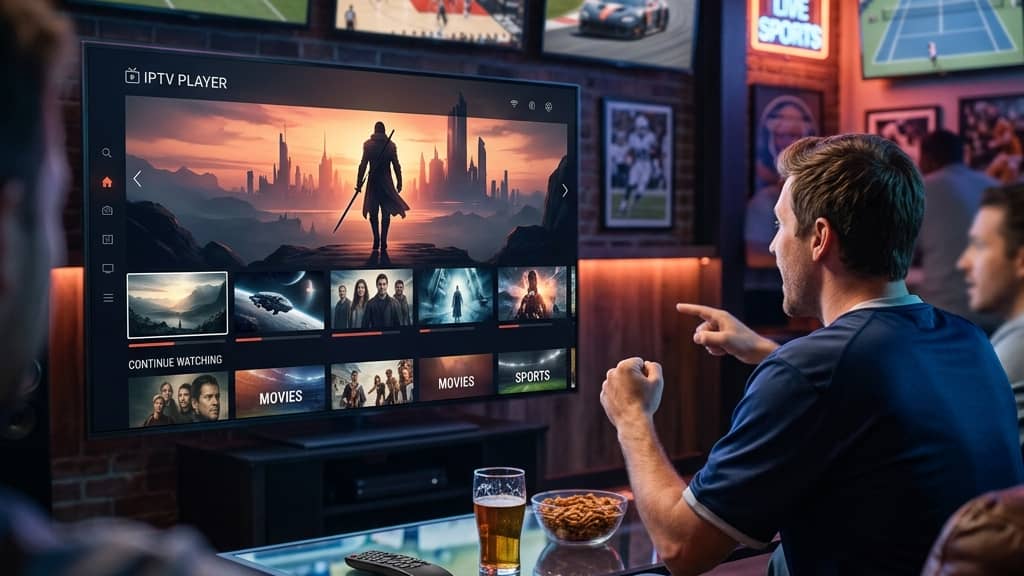
Discover What an IPTV Player Is and How It Works

Tired of paying a fortune for cable TV only to miss half the channels you actually want? Or maybe you've heard people talking about IPTV and you're sitting there wondering what on earth an IPTV player even is and whether it's the missing piece between you and unlimited live TV, sports, movies, and VOD content. You're not alone. Millions of cord-cutters are making the switch every single month, and the first question they all ask is the same one you're asking right now. By the time you finish reading this, you'll know exactly what an IPTV player is, how it works, which one to pick, and how to get it running without pulling your hair out.
Solving this matters because a poorly configured IPTV player leads to constant buffering, broken streams, and missed live events especially during peak hours when your ISP is quietly throttling your connection. Getting this right from the start saves you time, money, and a whole lot of frustration.
Core Concepts & Need-To-Know Info
- IPTV (Internet Protocol Television): Delivers live TV and on-demand content over your internet connection instead of through a cable or satellite dish.
- An IPTV player: The application or software that reads your subscription data and displays the streams on your screen, think of it as the TV set for your internet channels.
- M3U playlist: A text file containing a list of channel URLs. Your IPTV provider gives you this link, and your player reads it to load all your channels.
- Xtream Codes API: An alternative login method (Server URL + Username + Password) that many providers offer instead of a raw M3U URL, it's more stable and easier to manage.
- EPG (Electronic Program Guide): The on-screen TV guide showing what's airing now and what's coming next, similar to the guide button on a cable remote.
- VOD (Video on Demand): Refers to the movie and series library that most IPTV subscriptions bundle alongside live channels.
- ISP throttling: Happens when your internet provider detects heavy streaming traffic and deliberately slows your connection, a VPN fixes this instantly.
- Internet speed requirements: For HD streaming you need at least 10 Mbps per stream; for 4K you need 25 Mbps or more with a stable, low-latency connection.
Step-by-Step Guide: How to Set Up an IPTV Player
- Step 1: Choose Your IPTV Player App:
- The most popular and recommended IPTV players right now are TiviMate (Android/Firestick), IPTV Smarters Pro, and GSE Smart IPTV. For Firestick users, TiviMate is the gold standard. Head to the Amazon App Store on your Firestick or search for the app in the Google Play Store on Android TV. Download and install it, TiviMate is free to install with a premium upgrade option for advanced features.
- Step 2: Enable Downloader (Firestick Only):
- If your chosen app isn't available directly in the Amazon App Store, you'll need to sideload it. Go to your Firestick Home Screen, Settings, My Fire TV, Developer Options, and turn on Apps from Unknown Sources. Then install the Downloader app from the Amazon Store, open it, and type in the APK URL provided by the app's official website.
- Step 3: Gather Your IPTV Subscription Details:
- Contact your IPTV provider and get either your M3U URL or your Xtream Codes credentials (Server URL, Username, and Password). Double-check every character, a single typo in the URL will result in a playlist not found error that stumps beginners every time.
- Step 4: Add Your Playlist to the IPTV Player:
- Open TiviMate (or your chosen player), tap Add Playlist, select either M3U playlist or Xtream Codes depending on what your provider gave you. If using M3U, paste the full URL carefully. If using Xtream Codes, enter the Server URL exactly as given (including http:// or https://), then your username and password. Tap Next and let the app load your channels.
- Step 5: Configure Your EPG:
- Once your playlist loads, go to Settings, EPG or TV Guide within the app. Paste your EPG URL (ask your provider for this) so that the channel guide shows program schedules. Set the EPG update frequency to every 24 hours so it stays current without eating bandwidth.
- Step 6: Organize Channels into Groups:
- Most IPTV players let you hide channel groups you don't need. In TiviMate, go to Settings, Playlist, Groups and toggle off anything irrelevant. This makes navigation dramatically faster and cleaner.
- Step 7: Test a Live Stream and VOD:
- Pick a live sports channel and a VOD title and test both. If the stream loads within 3-5 seconds with no buffering, your setup is working perfectly. If you see buffering, move on to the troubleshooting section below before assuming your subscription is the problem.
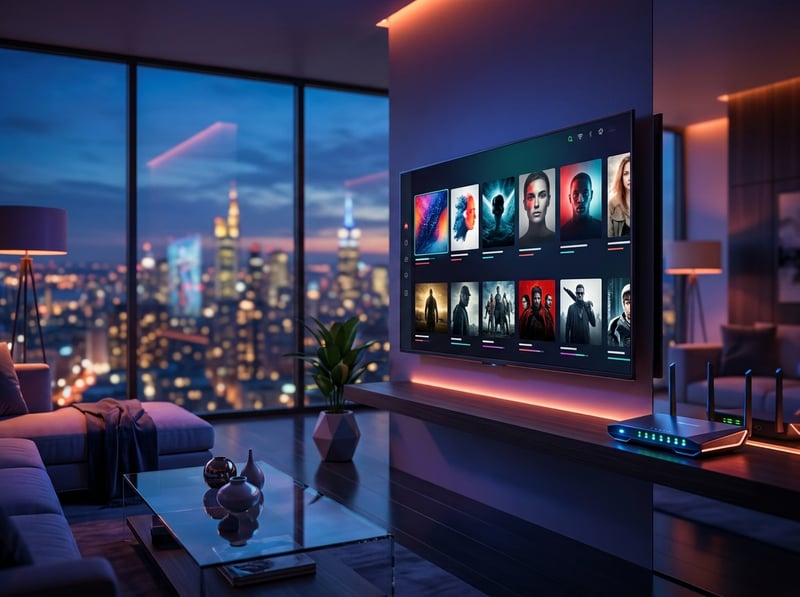
Imagine settling in to watch a championship game, everything set up, drink in hand, and then the stream freezes at kickoff because your ISP throttled your connection the moment it detected heavy video traffic. Or picture spending an hour troubleshooting a playlist error that turns out to be a single mistyped character in your M3U URL. These scenarios happen to real users every day, and every single one of them is avoidable with the right preparation.
Best VPNs to Stop ISP Throttling
If buffering is ruining your IPTV experience, a quality VPN is the single most effective fix. When your traffic is encrypted, your ISP can't see that you're streaming and therefore can't throttle it. ExpressVPN is the fastest option for IPTV users, its MediaStreamer feature and optimized servers handle 4K streams without breaking a sweat and it works flawlessly on Firestick with a dedicated app. NordVPN is excellent for IPTV thanks to its NordLynx protocol based on WireGuard, which delivers fast speeds with minimal latency and great server coverage across the US, UK, and Europe. Surfshark is budget-friendly with unlimited simultaneous connections, making it ideal if you're running IPTV on multiple devices in the same household. Always connect to a server in the same country as your IPTV provider's servers for the lowest possible latency, and enable the kill switch in your VPN settings so that if your VPN drops, your stream pauses rather than exposing your real IP to your ISP.
TiviMate vs IPTV Smarters Pro: Which IPTV Player Wins?
Choosing the right IPTV player dramatically affects your day-to-day experience. TiviMate offers the most polished, TV-native interface that feels like a real cable TV guide, with smooth EPG navigation, catch-up TV support, and rock-solid performance on Firestick and Android TV boxes, and the premium version at $4.99 per year unlocks multiple playlists, recording, and advanced settings. IPTV Smarters Pro is slightly easier for absolute beginners because the setup wizard is more guided, it also supports Xtream Codes natively and has a decent VOD browsing section, however the interface is more phone-like and less polished on a large TV screen. GSE Smart IPTV is a solid middle ground especially on iOS and macOS, making it the go-to choice for iPhone and iPad users. For Firestick users TiviMate wins without question, while beginners on Android smartphones will find IPTV Smarters Pro the easier starting point with a more familiar app layout.
Network Requirements for 4K Streaming
Your IPTV player is only as good as the network feeding it. The minimum speed for HD (1080p) is 10 Mbps per stream, which is the absolute floor and not a comfortable baseline, while 4K streaming requires 25 to 50 Mbps with low jitter since fluctuating speeds are more damaging than a consistently lower speed. A wired connection beats Wi-Fi every time, so if your Firestick or Android TV box is more than one room away from your router, consider a powerline adapter or a long ethernet cable. If Wi-Fi is unavoidable, make sure your device is connected to the 5GHz band rather than 2.4GHz for faster and more stable throughput, position your router elevated and centrally located away from microwaves or thick concrete walls, and restart your router weekly to clear its memory and resolve mysterious buffering issues immediately.
Troubleshooting Common IPTV Player Errors
When things go wrong, here's how to diagnose and fix the most common IPTV player problems fast. A playlist not found error almost always means a typo in your M3U URL or an expired subscription, so copy-paste the URL fresh from your provider and check your subscription status. If you experience buffering every few minutes, run a speed test first and if speeds are fine the issue is ISP throttling so connect a VPN, but if speeds are low the issue is your network. Channels loading with no sound can be fixed by going to your player's settings and switching the audio output format between Passthrough and PCM in TiviMate under Settings, Player, Audio. EPG not showing program info usually means your EPG URL is incorrect or your device's timezone is misconfigured, so force a manual EPG refresh and verify your timezone settings. App crashing on startup can be resolved by clearing the app cache under Settings, Applications, Manage Installed Applications on Firestick, and if streams work on your phone but not your TV, switch between the default player and ExoPlayer in TiviMate's Player settings to find a compatible video decoder.
Common Setup Mistakes & How to Fix Them
Even tech-savvy people make these errors when first learning what an IPTV player is and how to configure it properly. Adding the M3U URL with extra spaces is a frequent issue since invisible leading or trailing spaces can break the connection, so after pasting always manually click to the beginning and end of the URL field to delete any hidden spaces. Using the wrong Xtream Codes port is another common cause of failed logins since your provider's server URL must include the correct port number such as http://server.example.com:8080. Not setting a buffer size is a missed opportunity because increasing the buffer to 10 to 15 seconds in TiviMate's Player settings eliminates most minor buffering hiccups caused by brief network fluctuations. Finally, forgetting to update the EPG causes the guide to show wrong program info or no info at all, so set your EPG to auto-update daily to keep navigation smooth and accurate.
Now that you understand exactly what an IPTV player is and how every piece of the puzzle fits together, from M3U playlists and Xtream Codes to VPNs, EPG setup, and buffer settings, you're fully equipped to build a rock-solid streaming setup that outperforms cable TV at a fraction of the price. Pick your player, apply these steps, and check out our channel list and pricing plans to start enjoying the kind of streaming experience most people don't even know is possible.
Frequently Asked Questions
Ready to get started?
Try our service risk-free with a 24-hour free trial.
Related Articles
What Is DSL Internet and How It Works and Whether It Still Makes Sense in 2026
A practical guide explaining how DSL internet technology works over copper phone lines covering speed expectations and distance limitations and how DSL compares to modern broadband alternatives for streaming households.
Is IPTV Legal? Unpacking the Myths and Facts You Need to Know
Explore the legality of IPTV and its implications for users.
Is IPTV Legal in Canada? Understanding the Laws and Implications
Explore the legality of IPTV in Canada and safe streaming.