

How to Watch IPTV on VLC: A Complete 2026 Guide

You've got an IPTV subscription, an M3U playlist link sitting in your inbox, and absolutely no idea what to do next. Or maybe you've tried three different apps and they either buffer constantly, crash on startup, or ask for payment after a 24-hour trial. VLC Media Player is the answer most people overlook — it's free, it runs on almost every device imaginable, and when set up correctly, it handles live IPTV streams, VOD libraries, and M3U playlists with surprising reliability. This guide walks you through exactly how to watch IPTV on VLC, step by step, with no fluff and no wasted clicks.
Getting this setup right matters more than most people realize. A misconfigured playlist or the wrong network buffer setting can turn a 100 Mbps connection into a stuttering nightmare. Knowing how to watch IPTV on VLC properly means you'll spend your evenings watching live sports, not troubleshooting.
Core Concepts & Need-To-Know Info
- M3U Playlist: A text file (or URL) that contains a list of channel stream links. Your IPTV provider gives you one. It looks like: http://yourprovider.com:8080/get.php?username=YOU&password=PASS&type=m3u
- Xtream Codes: A popular IPTV panel system. Providers using it often give you a separate M3U URL output. VLC reads this just like any other M3U link.
- Network Stream vs. Local File: VLC can load IPTV either by opening a remote URL (most common) or by loading a downloaded .m3u file saved locally on your device.
- Caching/Buffering Value: VLC has a network caching setting (measured in milliseconds) that dramatically affects stream stability. The default is often too low for IPTV.
- VOD (Video On Demand): Most IPTV subscriptions include a VOD library. Your M3U URL or a separate link will load these as individual stream entries in VLC's playlist.
- Internet Speed Requirements: Standard definition streams need at least 5 Mbps. HD requires 10-25 Mbps. 4K IPTV streams need a minimum of 50 Mbps with low latency.
- VPN Compatibility: VLC itself doesn't have a built-in VPN, so you'll run a VPN at the router or device level before launching VLC to protect against ISP throttling.
Step-by-Step Guide
- Step 1: Download and Install VLC:
- Head to videolan.org and download the version matching your operating system. On Android or Fire TV, find VLC in the Google Play Store or Amazon Appstore respectively. Install it like any standard app — no special permissions or sideloading required on most platforms.
- Step 2: Grab Your M3U URL from Your IPTV Provider:
- Log into your provider's dashboard or check the welcome email they sent you. Copy the full M3U URL, which typically includes your username and password embedded in the link. If your provider uses Xtream Codes, ask them specifically for the M3U playlist link — not just your login credentials.
- Step 3: Open the Network Stream Option in VLC:
- Launch VLC. On desktop (Windows/Mac), click Media in the top menu bar, then select Open Network Stream. A dialog box will appear with a URL input field. On Android or mobile VLC, tap the Stream icon or go to More > New Stream.
- Step 4: Paste Your M3U URL and Click Play:
- Paste your full M3U URL into the network address field. Double-check there are no extra spaces at the beginning or end — this is one of the most common reasons streams fail to load. Click Play on desktop or tap the stream button on mobile. VLC will begin parsing your playlist.
- Step 5: Browse Your Channel List:
- Once loaded, open VLC's Playlist view (View > Playlist on desktop). You'll see all your IPTV channels listed by name. Click any channel to begin streaming. On mobile, the playlist will appear automatically after the M3U finishes loading.
- Step 6: Adjust Network Caching for Stable Streams:
- This step makes the biggest difference for buffering. On desktop, go to Tools > Preferences > Show Settings (All) > Input/Codecs. Find the Network Caching (ms) field and change the value from the default 1000ms to 3000ms. Click Save, then restart VLC. This gives the player a larger buffer to work with, dramatically reducing mid-stream pauses.
- Step 7: Set Up a VPN Before Streaming (Recommended):
- Before opening VLC, connect to a VPN server — ideally one located close to your IPTV provider's server region. This prevents your ISP from detecting and throttling IPTV traffic. Once the VPN is connected, launch VLC and load your stream as normal.
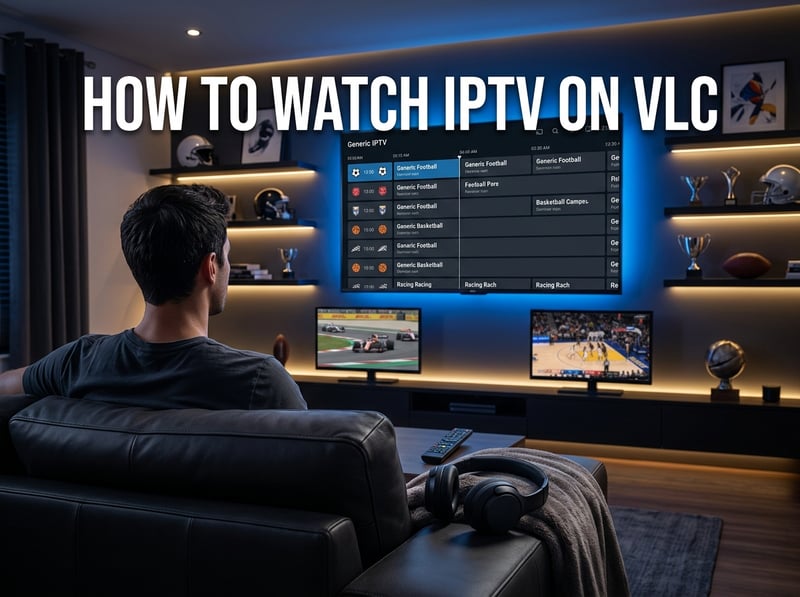
Imagine sitting down to watch a Champions League final, stream loads for 10 seconds, then freezes for 30 — all because your ISP identified the traffic pattern and soft-capped the connection. This happens constantly to unprotected IPTV users. Or consider a provider who gave you an Xtream Codes URL instead of a proper M3U link — loading that directly into VLC without converting it first results in nothing but an error screen and a frustrating evening.
Best VPNs to Stop ISP Throttling While Using VLC
ISP throttling is the silent killer of IPTV streams, and VLC gives you no protection against it on its own. A good VPN encrypts your traffic so your ISP sees encrypted data, not IPTV packets it can specifically target.
- ExpressVPN: Consistently fast servers, a dedicated Fire TV app, and a MediaStreamer DNS feature that helps with geo-restricted sports content. Best overall for IPTV on VLC.
- NordVPN: Offers NordLynx (WireGuard-based) protocol which delivers exceptional speeds with minimal overhead. Ideal for 4K IPTV streams where every Mbps counts.
- Surfshark: The most budget-friendly premium option. Unlimited simultaneous connections means you can protect every streaming device in your home under one subscription.
- Always connect to a VPN server near your IPTV provider's host location: Connecting to a server in the wrong country adds latency and slows your stream down unnecessarily.
- Use the WireGuard or Lightway protocol: These modern protocols add far less speed overhead than older OpenVPN options, keeping your IPTV experience smooth.
Common Setup Mistakes & How to Fix Them
Even tech-savvy users make these errors when setting up how to watch IPTV on VLC for the first time. Knowing them in advance saves hours of frustration.
- Loading an Xtream Codes login URL instead of an M3U URL: If your provider gave you a server address, username, and password separately, you need to construct the M3U URL yourself or ask them for the direct M3U link. The format is: http://SERVER:PORT/get.php?username=USER&password=PASS&type=m3u_plus
- Playlist loads but channels won't play: This almost always points to an expired or maxed-out IPTV subscription. Contact your provider to verify your account status before spending time troubleshooting VLC settings.
- VLC crashes when loading large playlists: Some M3U files contain 10,000+ channels. VLC can struggle with this. Ask your provider for a filtered playlist (sports only, or your region only) to reduce the load.
- Audio works but video is black: Go to Tools > Preferences > Video and change the Output setting from Automatic to DirectX (DirectDraw) on Windows, or OpenGL on Mac/Linux. This fixes hardware decoding conflicts.
- Streams buffer after a few minutes even with fast internet: Increase network caching to 5000ms or higher and ensure no other devices on your network are consuming significant bandwidth simultaneously.
VLC vs. Dedicated IPTV Apps: When to Use Which
VLC is powerful, but it's not always the right tool for every streaming situation. Here's how it stacks up against purpose-built IPTV apps.
- TiviMate (Android/Fire TV): Purpose-built for IPTV with EPG (Electronic Program Guide) support, favorites lists, catch-up TV, and a polished TV interface. Far better for daily channel browsing than VLC's playlist view.
- IPTV Smarters Pro: Supports both M3U and Xtream Codes login directly in the app. Better for users who want a Netflix-style VOD browsing experience.
- VLC excels at: One-time stream testing, quickly verifying your M3U URL works, playing individual VOD files, and use on platforms (like desktop Windows or Mac) where dedicated IPTV apps aren't available.
- Use VLC when: You want a quick, no-account-needed way to verify your IPTV subscription is active, or when you're on a device where dedicated apps aren't an option.
- Use TiviMate or Smarters when: You want a proper TV guide, multi-screen viewing, favorites, and a user experience designed specifically for daily IPTV watching.
Network Requirements for Smooth IPTV on VLC
Getting the network right is as important as the app itself. VLC can only work with the data your connection delivers to it.
- Minimum for SD streams: 5 Mbps download speed with latency under 100ms to the IPTV server.
- Recommended for HD (1080p) streams: 25 Mbps dedicated to the streaming device, meaning other devices on the network shouldn't be downloading simultaneously.
- For 4K IPTV streams: A minimum of 50 Mbps with latency under 50ms. Wired Ethernet is strongly recommended over Wi-Fi for 4K content.
- Router placement matters: If you're streaming on a device connected via Wi-Fi, ensure the router is in the same room or use a Wi-Fi 6 router for better signal stability.
- Use a wired Ethernet connection wherever possible: A physical cable eliminates the interference, channel congestion, and inconsistency that Wi-Fi introduces into IPTV streams.
- Run a speed test to your IPTV server, not just Google: Use fast.com or a server-specific test. Your ISP's throttling may not show up on standard speed tests that they whitelist.
Troubleshooting: Fixing Playlist Errors in VLC
When your M3U playlist throws an error or simply refuses to load, work through these fixes systematically.
- Error: Your input can't be opened: This means VLC can't reach the stream URL. Check your internet connection, verify the URL is correct, and confirm your IPTV subscription is active and hasn't hit its connection limit.
- Playlist loads but shows empty: The M3U file may be formatted incorrectly by the provider, or your VLC version is outdated. Update VLC to the latest version and try reloading.
- Only some channels work: Channels that fail are likely geo-restricted or temporarily down on the provider's end. Try the same channels at a different time or connect to a VPN with a server in a different region.
- EPG (channel guide) not showing: VLC does not natively support EPG display. For program guide data, you'd need to switch to TiviMate or Smarters, which have built-in EPG support.
- Stream cuts out every 20-30 minutes: This is a session timeout issue on the provider's server side, not a VLC problem. Contact your provider and ask them to extend the session timeout on your account.

Knowing how to watch IPTV on VLC the right way means you've got a reliable, cost-free fallback that works across virtually every screen in your home. Pair it with the right VPN, dial in your network caching, and keep your M3U URL safe — then check out our full channel list and pricing plans to make sure you're getting the best IPTV subscription to go with your new setup.
Frequently Asked Questions
Ready to get started?
Try our service risk-free with a 24-hour free trial.
Related Articles
How to Fix Slow Internet and Speed Up Your Connection for Better Streaming
A practical troubleshooting guide for diagnosing and fixing slow internet connections covering router resets and DNS optimization and ISP speed verification and network congestion solutions for streaming households.
How to Get Local Channels on Roku Free and Paid Options 2026
Local channels are the one thing cord-cutters miss most after cancelling cable. Your local news, weather forecasts, and network programming feel impossible to replace until you realize Roku offers multiple ways to access them without a cable subscription. This guide covers every method available in 2026 from completely free options to budget IPTV that delivers every local channel in HD.
Ad-Supported Streaming Services in 2026: Are Free Tiers Worth the Ads?
Honest 2026 comparison of ad-supported streaming services like Tubi, Pluto TV, and Peacock Free against affordable ad-free IPTV alternatives.