
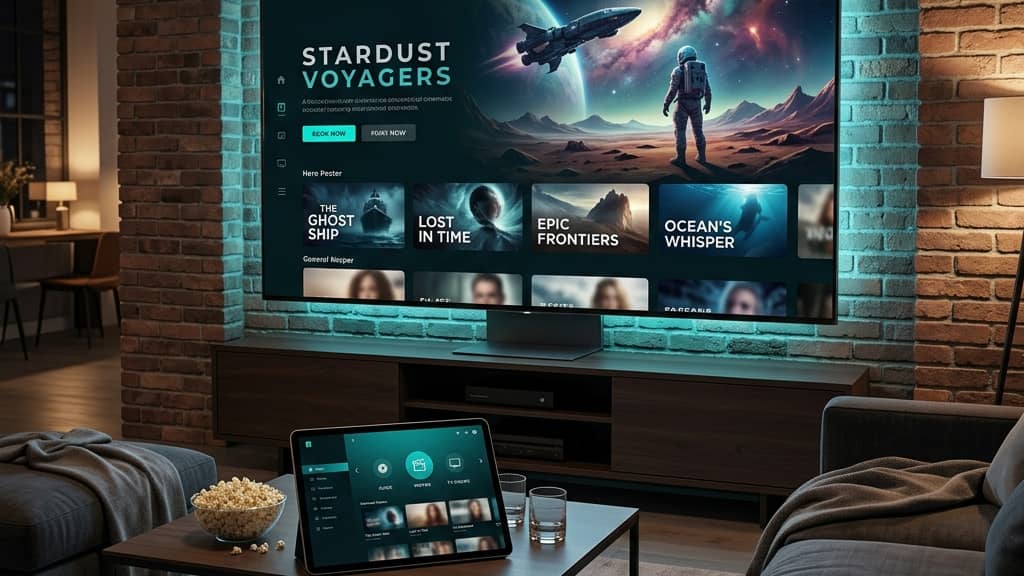
What are IPTV Boxes? Understanding Your Streaming Options

Tired of paying $150+ a month for a cable package that delivers 500 channels you never watch? You're not alone. Millions of people are making the switch to IPTV, and the centerpiece of that switch is the IPTV box, a compact, powerful device that transforms any TV into a smart streaming powerhouse. But with so many options flooding the market, figuring out what an IPTV box actually is, how it works, and which one deserves a spot under your television can feel overwhelming. This guide cuts through the noise and gives you everything you need to know, from the technical basics to choosing the right hardware for crystal-clear, buffer-free streaming.
Solving this now matters because the cable industry isn't getting cheaper, and IPTV technology is only getting more refined. Getting your setup right from day one means you're not stuck debugging buffering issues every Friday night when you just want to watch the game.
Core Concepts & Need-To-Know Info
- IPTV stands for Internet Protocol Television: Instead of receiving TV signals through a satellite dish or coaxial cable, content is delivered over your internet connection in real time
- M3U Playlist: This is a text-based file containing the URLs of all your live channels and VOD content, it's essentially the key your IPTV box uses to find every channel your provider offers
- Xtream Codes API: An alternative to M3U URLs, this login system uses a server URL, username, and password to connect your device to your IPTV provider's content library
- EPG (Electronic Program Guide): The on-screen channel guide that shows what's playing now and what's coming up, a critical feature for a TV-like experience
- IPTV Box vs. Stick vs. Smart TV App: Dedicated IPTV boxes (like NVIDIA Shield or MAG boxes) offer more processing power; sticks (like Amazon Firestick) are portable and cheap; Smart TV apps are convenient but often limited
- Buffering is a network issue, not always a device issue: ISP throttling, weak Wi-Fi signal, and underpowered hardware are the three most common culprits
- A VPN can bypass ISP throttling: Internet Service Providers sometimes deliberately slow down streaming traffic, and a VPN routes your connection around that restriction
Step-by-Step Guide
- Step 1: Choose Your IPTV Box Hardware:
- Select the right device for your needs. The Amazon Firestick 4K Max is perfect for budget-conscious users (around $60), the NVIDIA Shield TV Pro is the gold standard for power users who want zero compromise, and MAG boxes are preferred by users who want a traditional cable-box feel. Plug your chosen device into your TV's HDMI port and power it up.
- Step 2: Connect to Your Home Network:
- Navigate to your device's Settings menu and select Network or Wi-Fi. For the best streaming experience, connect via an Ethernet adapter rather than Wi-Fi, this alone eliminates 80% of buffering complaints. If you must use Wi-Fi, ensure you're on a 5GHz band rather than 2.4GHz for faster, more stable throughput.
- Step 3: Enable Sideloading (Firestick Only):
- Go to Settings, My Fire TV, Developer Options, then toggle on Apps from Unknown Sources. This allows you to install IPTV apps like TiviMate or IPTV Smarters Pro that aren't in the official Amazon App Store. Android TV boxes generally don't require this step.
- Step 4: Install Your IPTV Player App:
- Open the Amazon App Store or Google Play Store and download TiviMate IPTV Player (highly recommended), IPTV Smarters Pro, or GSE Smart IPTV. On Firestick, use the Downloader app to sideload TiviMate directly by entering its APK URL. Once installed, open the app and select Add Playlist.
- Step 5: Enter Your M3U URL or Xtream Codes:
- This is where your IPTV subscription provider's credentials come in. If you have an M3U URL, paste it into the M3U URL field exactly as provided, a single character error will break the connection. If your provider uses Xtream Codes, select that option and enter your Server URL, Username, and Password exactly as they appear in your welcome email.
- Step 6: Load Your EPG (Program Guide):
- Inside your IPTV app settings, locate the EPG or TV Guide section and enter the EPG URL provided by your IPTV service. Set the refresh interval to every 24 hours. This populates the on-screen guide with show names, times, and descriptions so your setup feels like a real cable replacement.
- Step 7: Organize Your Channels and Test Playback:
- Once your playlist loads, create favorites groups for Sports, Movies, News, and Kids content. Test playback on a live sports channel and a VOD title. If both load within 3-5 seconds without buffering, your setup is complete and working correctly.

Imagine settling in for a championship fight you've been waiting weeks for, only to watch your stream freeze at the opening bell because your ISP throttled your connection and you're running a free VPN that can't compensate. Or picture spending an hour trying to load channels only to realize you typed one wrong character in your M3U URL. These scenarios happen every single day, and every one of them is entirely preventable with the right setup.
Best VPNs to Stop ISP Throttling on IPTV Boxes
A quality VPN is arguably the single most important companion tool for any IPTV box user. When your ISP can't see that you're streaming video, it can't throttle it.
- ExpressVPN: Consistently fastest speeds in independent tests, with dedicated apps for Firestick, Android TV, and NVIDIA Shield, it installs directly from the Amazon App Store with no sideloading needed
- NordVPN: Offers a Meshnet feature and obfuscated servers that are particularly effective at bypassing deep packet inspection throttling used by aggressive ISPs
- Surfshark: The best value option for households with multiple IPTV devices, unlimited simultaneous connections mean you can protect every screen in your home on one subscription
- Always connect to a server close to your physical location: Connecting to a VPN server in the same country keeps your latency low and your streaming speeds fast. Routing through a server on another continent adds unnecessary delay
- Enable the VPN kill switch: This feature cuts your internet connection if the VPN drops unexpectedly, preventing your ISP from seeing your unprotected traffic even for a split second
TiviMate vs. IPTV Smarters: Which App Is Right for Your IPTV Box?
Your IPTV box is only as good as the app running on it. These two dominate the space for good reason, but they serve different users.
- TiviMate is the undisputed champion for users who want a polished, cable-TV-like interface. Its EPG is smooth, channel switching is near-instant, and the paid Premium version ($4.99/year) unlocks multi-screen viewing, recording, and catch-up TV, genuinely one of the best software investments in IPTV
- IPTV Smarters Pro is better suited for users who switch between multiple IPTV subscriptions frequently, as it handles multiple playlists in one dashboard more elegantly than TiviMate
- GSE Smart IPTV is the go-to choice for technically advanced users who want granular control over stream settings, custom headers, and user-agent strings for providers with strict connection policies
- TiviMate's catch-up feature is a game-changer: if your IPTV provider supports it, you can rewind live TV up to 7 days, a feature cable companies charge extra for
- Both apps support Xtream Codes and M3U URL input, so your provider credentials will work with either
Network Requirements for Smooth IPTV Streaming
Your IPTV box can only perform as well as your internet connection allows it to. Underpowering your network is the most overlooked aspect of IPTV setup.
- Minimum for SD streaming: 5 Mbps dedicated to the IPTV device
- Minimum for HD (1080p) streaming: 15-25 Mbps with low contention from other household devices
- 4K HDR streaming requirement: 40-60 Mbps stable, not peak, this means your plan speed needs to be well above 60 Mbps when accounting for other household usage
- Wired Ethernet is always superior to Wi-Fi: Even a Cat5e cable delivers more stable throughput than a strong Wi-Fi signal because it eliminates interference and signal drops
- Router quality matters enormously: ISP-provided routers are typically underpowered. A mid-range router like the TP-Link Archer AX55 dramatically improves IPTV performance in multi-device households
- Run a speed test at your IPTV box, not your phone: Apps like Fast.com or Speedtest.net installed directly on your streaming device give you the actual speed available to your IPTV service
Common Setup Mistakes and How to Fix Them
Even experienced users run into these. Knowing the fix before it happens saves you hours of frustration.
- Channels load but immediately freeze: This is almost always ISP throttling or weak signal. Enable your VPN and test again, if playback immediately improves, throttling is confirmed
- M3U playlist loads but shows 0 channels: Your provider's server is likely down or the URL has expired. Contact your provider's support and request a fresh URL. Also check that you copied the complete URL including any trailing parameters
- EPG shows no program information: Your EPG URL may be incorrect or your app's time zone setting doesn't match your location. Go into app settings, verify the EPG URL, and adjust the time offset until guide times align with actual broadcast times
- App crashes when switching channels rapidly: This is a RAM issue on lower-end devices. Clear the app cache (Settings, Apps, TiviMate, Clear Cache), restart the device, and avoid rapid channel flipping during heavy processing moments
- 4K content plays in lower resolution: Check that your HDMI cable supports HDMI 2.0 or higher, that your TV is set to receive 4K signal, and that your IPTV app's video output settings are configured for maximum resolution
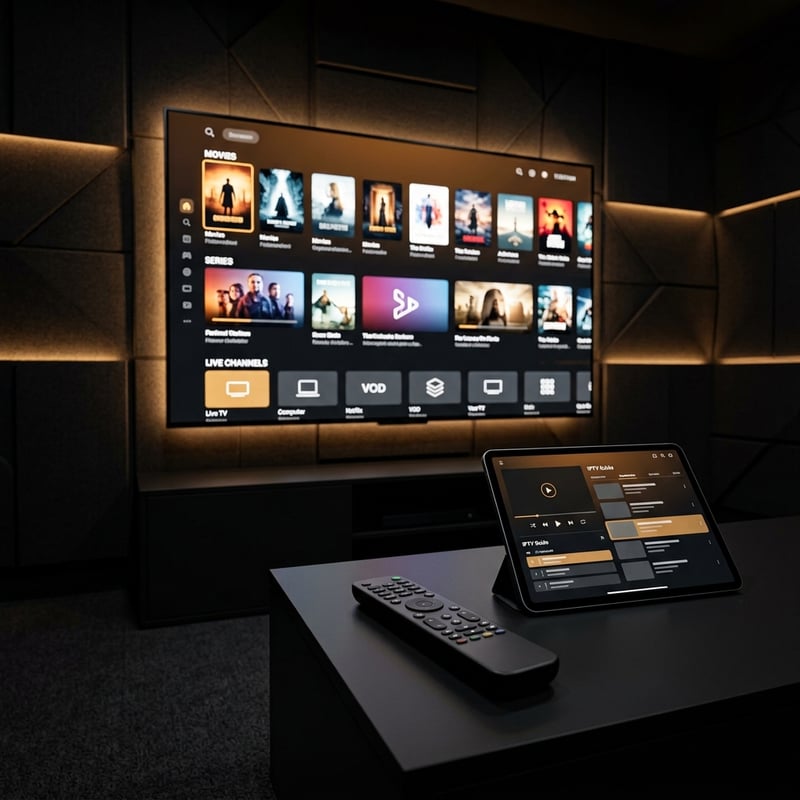
Now that you understand exactly what IPTV boxes are, how they work, and how to set them up correctly, from M3U playlists and Xtream Codes to VPNs and proper network configuration, you have everything you need to build a streaming setup that rivals any cable package. The cord-cutting life is genuinely better when your hardware and software are dialed in properly, so explore our full channel list and pricing plans to find the perfect IPTV subscription for your setup.
Frequently Asked Questions
Ready to get started?
Try our service risk-free with a 24-hour free trial.
Related Articles
How to Cut the Cord Complete Guide to Replacing Cable TV in 2026
Cable bills averaging $150 per month in 2026 are driving millions of households to cut the cord permanently. This guide walks you through the entire process from auditing what you actually watch to choosing the right streaming services and equipment to replacing your cable subscription without losing a single channel you care about. Includes a worked cost example and the alternatives that replace each part of a cable package.
What is IPTV GitHub? Exploring Streams and Subscriptions
Uncover the essentials of IPTV GitHub and its benefits for streaming.

How Does IPTV Work? Understanding the Technology Behind Streaming
Explore the inner workings of IPTV and its benefits.