
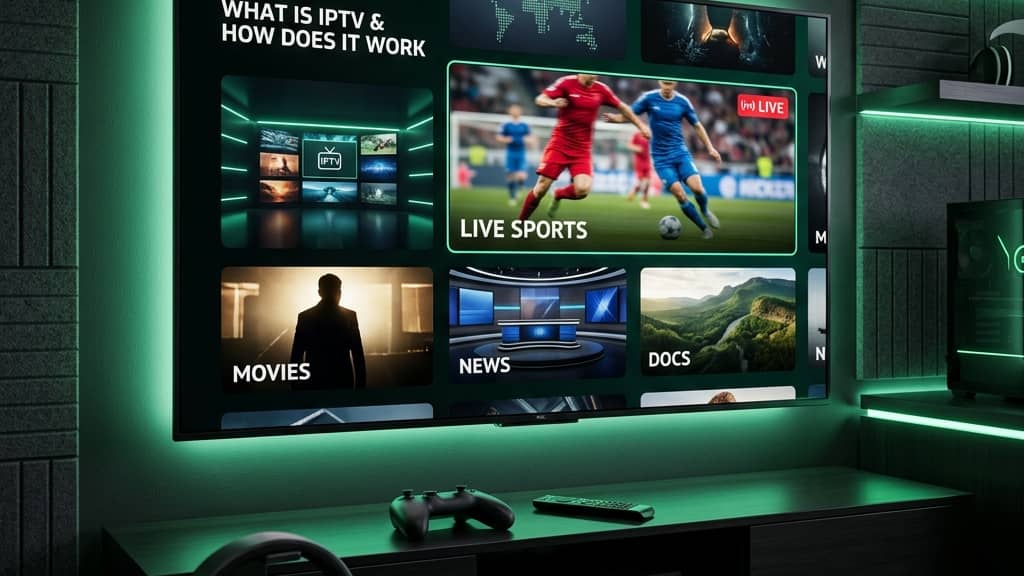
Understanding IPTV: What Is It and How Does It Work?

You've heard people talking about cutting the cord, ditching their cable bills, and watching hundreds of live channels for a fraction of the cost and now you want in. But every time you search what is IPTV and how does it work, you land on either a dry Wikipedia page or a half-baked blog post that leaves you more confused than when you started. That ends right now. This guide breaks down exactly what IPTV is, how the technology delivers your favorite live sports, movies, and TV shows directly to your screen, and how you can get it running on your Firestick, Smart TV, or Android box today without any technical background required.
Solving the question of what IPTV is and how it works isn't just about satisfying curiosity, it's the first step toward building a streaming setup that genuinely replaces cable. Getting the fundamentals right from the start means fewer headaches, no buffering nightmares, and a system that runs reliably for years.
Core Concepts & Need-To-Know Info
- IPTV stands for Internet Protocol Television: Instead of receiving video signals through a cable line or satellite dish, content is delivered over your internet connection using the same IP-based protocol your browser uses.
- Your content is streamed in real time: Unlike downloading a movie file, IPTV streams video data in packets directly to your device as you watch, meaning your internet speed and server quality matter enormously.
- M3U playlists are the backbone of most IPTV services: An M3U URL (or M3U file) is a playlist link your IPTV app reads to locate and organize all available channels and VOD content. Think of it as a master directory pointing to every stream.
- Xtream Codes is an alternative login method: Many providers offer an Xtream Codes API login, a username, password, and server URL, instead of a raw M3U link. Both do the same job; Xtream Codes just tends to be more stable.
- Your ISP can throttle IPTV streams: Internet Service Providers are known to detect and intentionally slow down streaming traffic. This is one of the most common causes of unexpected buffering even on fast connections.
- A VPN encrypts your traffic: Using a VPN hides your streaming activity from your ISP, preventing throttling and keeping your viewing private.
- Bitrate determines stream quality: SD streams typically need 5-10 Mbps, HD streams need 10-25 Mbps, and 4K streams can require 50 Mbps or more per simultaneous stream.
Step-by-Step Guide
- Step 1: Choose Your IPTV App:
- Before anything else, pick the right player. TiviMate is the gold standard for Firestick and Android TV, it's clean, fast, and handles large M3U playlists without crashing. IPTV Smarters Pro is a great free alternative. For Smart TVs (Samsung, LG), try Smart IPTV or GSE Smart IPTV. Download your chosen app from the Google Play Store, Amazon App Store, or by sideloading via the Downloader app on Firestick.
- Step 2: Enable Sideloading on Firestick (If Needed):
- If TiviMate or your app isn't in the Amazon App Store, go to Settings, My Fire TV, Developer Options, Apps from Unknown Sources and toggle it ON. Then open the Downloader app (install it free from the Amazon Store), type in the APK download URL for your chosen IPTV app, and follow the install prompts. This takes about 90 seconds.
- Step 3: Get Your IPTV Subscription Details:
- Sign up with a reputable IPTV provider. After purchase, they'll send you either an M3U URL or Xtream Codes credentials (a server URL, username, and password). Copy these carefully, a single typo will result in a playlist error that looks like a broken service but is simply a mistyped link.
- Step 4: Add Your Playlist to the App:
- Open TiviMate, tap Add Playlist, select M3U playlist or Xtream Codes depending on what your provider gave you. Paste your M3U URL exactly as received, or enter your Xtream Codes server address, username, and password into the corresponding fields. Tap Add and let the app load your channel list, this may take 30-90 seconds depending on playlist size.
- Step 5: Organize Your Channels and EPG:
- Once loaded, set up your Electronic Program Guide (EPG) so you can see what's playing. In TiviMate, go to Settings, Playlist, EPG URL and paste the EPG link your provider supplies. Set the EPG refresh interval to every 24 hours. Then use the channel editor to favorite the sports, news, and entertainment groups you watch most, this makes daily navigation incredibly fast.
- Step 6: Test Your Streams:
- Before settling in for a movie or live match, test streams in a few different categories: a live sports channel, a local news channel, and a VOD title. If all three load within 3-5 seconds and play smoothly for 2-3 minutes, your setup is solid. If you notice spinning buffering icons, move to the troubleshooting steps below.

Imagine settling in for a Champions League final, popcorn in hand, only to have your stream freeze every 45 seconds because your ISP detected the traffic and throttled it down. Or picture missing a PPV knockout because someone you shared your link with is simultaneously watching in another country. These aren't edge cases, they're the most common IPTV frustrations reported by users, and they're entirely preventable with the right setup.
Best VPNs to Stop ISP Throttling
ISP throttling is the silent IPTV killer, and a quality VPN is the only reliable fix. ExpressVPN is the top pick for Firestick users, it has a native Fire TV app, MediaStreamer DNS built in, and consistently delivers 300+ Mbps on its fastest servers, more than enough for multiple 4K streams simultaneously. NordVPN offers NordLynx protocol (based on WireGuard), which dramatically reduces the latency introduced by VPN encryption, critical for live sports where a 10-second delay is unacceptable. Surfshark is the best budget option, allowing unlimited simultaneous connections on one account, ideal if you're running IPTV on a Firestick, Android tablet, and Smart TV at the same time. When selecting a VPN server, always choose one in the same country as your IPTV provider's server for the lowest latency. If your provider's servers are in the UK, connect your VPN to a UK server location.
Common Setup Mistakes and How to Fix Them
Even tech-savvy users make these errors when first setting up IPTV. If your program guide shows shows starting at the wrong time, it's an EPG timezone mismatch, go to Settings, EPG, Time Offset in TiviMate and adjust by +/- hours until live program times match what's actually on screen. If your channel list stops updating, go to Settings, Playlist, Update Interval and set it to refresh every 24 hours automatically. App crashes on startup after an update are almost always a cache issue, go to Settings, Applications, Manage Installed Applications, TiviMate, Clear Cache on Firestick. If channels load but show a black screen, switch the video decoder from Hardware to Software in TiviMate settings, it uses more processing power but solves the black screen instantly.
Recommended Apps: TiviMate vs IPTV Smarters Pro
Choosing the right IPTV player makes a bigger difference than most beginners realize. TiviMate (Android/Firestick) is hands-down the best IPTV player available, the free version supports one playlist and the Premium version ($5.99/year) unlocks multiple playlists, parental controls, recording functionality, and advanced EPG options with a UI closest to a real cable TV guide experience. IPTV Smarters Pro is completely free and supports both M3U and Xtream Codes logins, making it an excellent starting point if you want to test a subscription before committing to TiviMate Premium. GSE Smart IPTV shines on iOS and macOS devices, supporting multiple playlist management and offering a user-friendly remote access feature for managing playlists from a browser. For Smart TVs (Samsung Tizen, LG WebOS), Smart IPTV (one-time $5.49 activation) remains the most reliable option due to its lightweight footprint and consistent compatibility with TV manufacturer app stores.
Network Requirements for 4K Streaming
Your internet connection is the foundation everything else sits on. SD (480p) requires 5 Mbps, HD (1080p) requires 15-25 Mbps, and 4K (2160p) requires 40-50 Mbps per active stream, and these are per-stream numbers so multiply by the number of TVs streaming simultaneously. A direct ethernet connection from your router to your Firestick (via a USB-to-ethernet adapter) or Android TV box eliminates the packet loss and interference that WiFi introduces, especially in apartments with dozens of competing networks. If you must use WiFi, ensure your streaming device is on the 5GHz band (not 2.4GHz) and within 30 feet of the router without walls blocking the signal. Power users can separate their streaming devices onto a dedicated network segment so other household devices like smart home gadgets and gaming consoles can't compete for bandwidth during peak viewing hours.
Troubleshooting: Fixing Playlist Errors
Playlist errors are the number-one support ticket for IPTV users. If you see a playlist could not be loaded error, verify your M3U URL is still active by pasting it directly into a browser, if it downloads a file the URL is valid, but if the browser returns a 403 or 404 error your provider's server is down or your subscription has expired. If channels disappear after a playlist refresh, force a full reload in TiviMate by going to Settings, Playlist, Update Now, and if channels are still missing contact your provider as this is a server-side issue. If specific channels buffer but others don't, this points to a server-side issue with that particular channel's stream, so check if your provider has a backup server URL and switch to it in your playlist settings. For authentication errors with Xtream Codes, double-check that your subscription hasn't hit its simultaneous connection limit, log out of all other devices using the same credentials, wait 5 minutes, and reconnect on your primary device only.
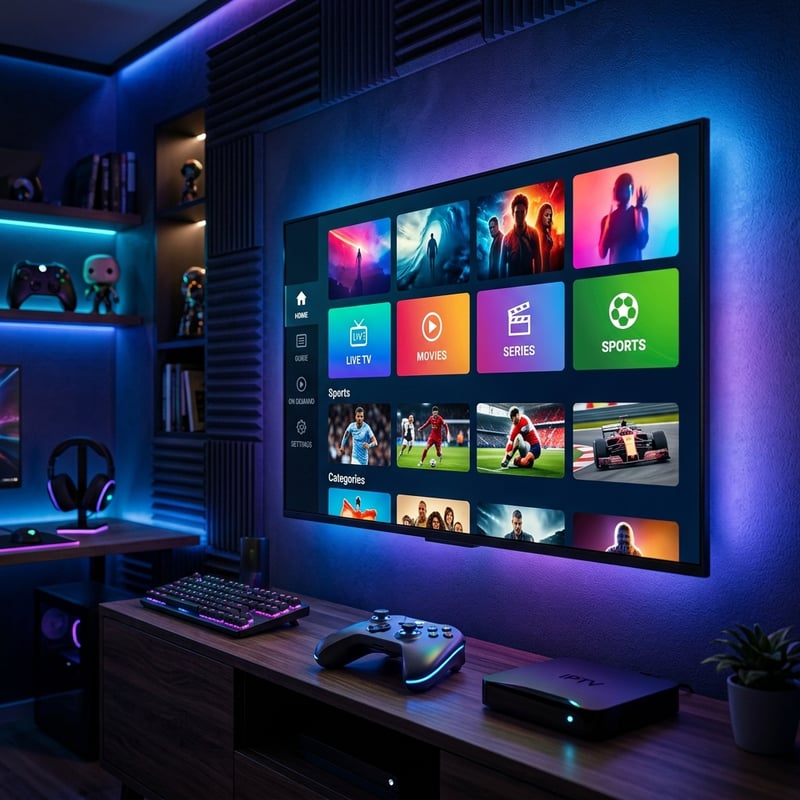
Understanding what IPTV is and how it works is genuinely the gateway to a better, cheaper, and more flexible TV experience than anything traditional cable can offer. With the right app, a reliable subscription, a quality VPN running in the background, and a solid internet connection, you have a streaming setup that handles live sports, international channels, and massive VOD libraries without skipping a beat. Take what you've learned here, follow the steps in order, apply the pro tips from day one, and check out our full channel list and pricing plans to get your cable-replacement system running today.
Frequently Asked Questions
Ready to get started?
Try our service risk-free with a 24-hour free trial.
Related Articles
What Is Broadband Internet and How It Works and Why Speed Tiers Matter
A comprehensive guide explaining what broadband internet is covering the different delivery technologies and speed tier classifications and how to choose the right broadband type and plan for your household needs.
How to Install IPTV on Firestick: The Ultimate 2026 Guide
Step-by-step guide to install IPTV on Firestick.

Discover the Best IPTV UK Subscriptions for 2026: Reviews & Tips
Uncover the best IPTV subscriptions available in the UK for 2026.